

Verification and trust badges
What the four trust badges are, what each needs, how to submit the five verification steps, and why a membership never gives a badge.
Last checked: 1 October 2026
এই গাইডটি বাংলায় পড়ুনContents
The four trust badges
| Badge | What it tells the buyer | What it needs |
|---|---|---|
| Exportain Verified | Exportain has checked your identity, phone, email and business registration | Approved identity (ID + selfie), a Bangladeshi mobile (+8801…) verified by SMS and a verified email (same person), and an approved, unexpired business registration (trade licence) |
| Export Verified | Your Export Registration Certificate (ERC) has been checked | Exportain Verified + an approved, unexpired ERC |
| Factory Verified / Trading Company Verified | Photos of the factory (or office/warehouse) have been seen | Exportain Verified + approved factory photos (manufacturer) or office/warehouse photos (trading company) |
| Trusted Trader | Has completed orders on Exportain without disputes | Exportain Verified + at least 2 completed orders in the last 12 months, no disputes, and at least 90% of closed orders completed |
The verification centre
Open Verification in the menu. At the top, Your status shows each badge's requirements with ticks; below, Verification steps has the five steps.
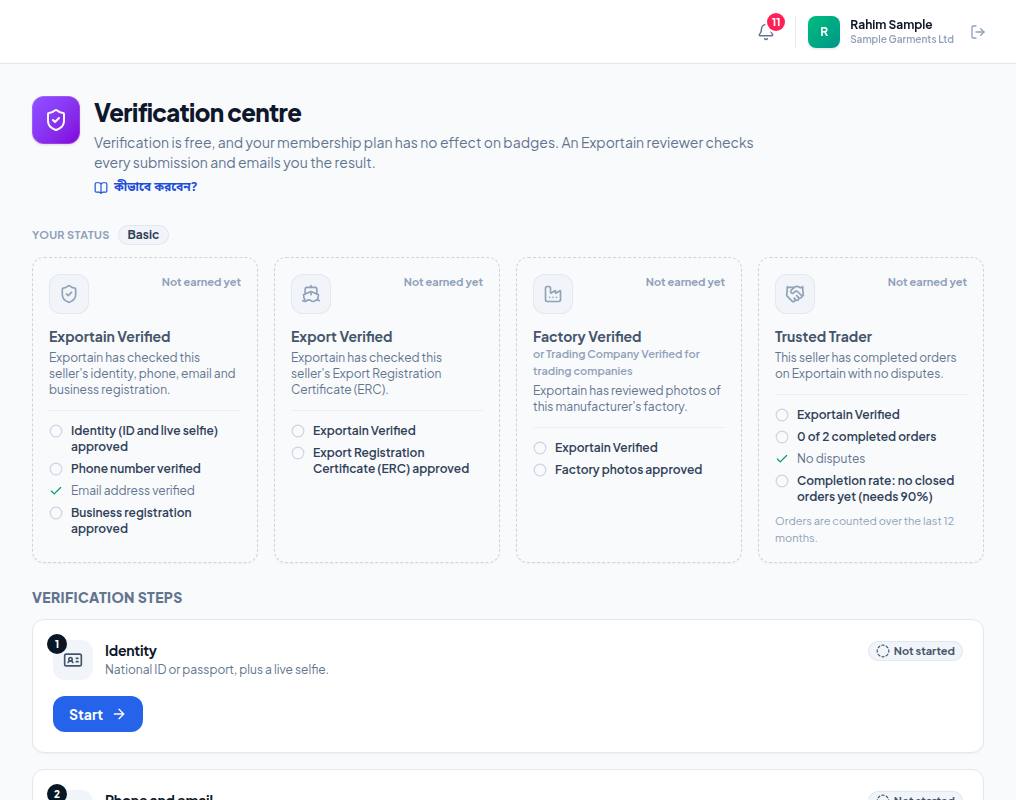
- 1. Your status — your current level (for example Basic).
- 2. Each badge's card — which requirements are met (green tick) and which are left (empty circle). You see at a glance what's missing.
- 3. Verification steps — the five steps in order: identity, phone and email, business registration, ERC, factory/office photos.
- 4. Start on each step opens its form. The status shows on the right (Not started, in review, approved).
Step 1: identity (NID/passport + live selfie)
- Press Start on the Identity step.
- Choose National ID or Passport and upload a clear photo or scan (JPEG, PNG, WebP or PDF — up to 10 MB).
- Liveness selfie: look at the camera and blink naturally — the picture is taken by itself. You must allow camera access.
- Check both pictures and press Submit for Review.
Step 2: phone and email
One person on your team needs both a verified phone (SMS) and a verified email on their account. The email is usually verified when you register. For the phone, choose SMS in the Phone Verification card and get a code on a Bangladeshi mobile number (+8801…) — at most 5 SMS codes a day. If the page says SMS verification is not available yet., no code was sent; try again later.
Step 3: business registration (trade licence)
- Press Start on the Business registration step.
- Give the Legal business name (as written on the trade licence), Business type and Registered address.
- Trade licence number and Trade licence expiry date. An expired date is not accepted.
- Optional: TIN, Incorporation number, Owners or directors (names separated by commas).
- Files: Trade licence (required), TIN certificate and Incorporation certificate or MOA (optional).
- Press Submit for review.
Step 4: export registration (ERC)
- Start on the Export registration (ERC) step.
- Give the ERC number and ERC expiry date; optionally BIN and Chamber or association.
- Upload the ERC certificate and press Submit for review.
Step 5: factory or trading premises photos
- Start on the Factory or trading premises photos step.
- Your premises: choose Manufacturer (earns Factory Verified) or Trading company (earns Trading Company Verified).
- Address of the premises — where the photos were taken. Optional: Production capacity, Workforce, Short description.
- Add at least 3 and at most 12 photos (JPG, PNG or WEBP, up to 10 MB each).
- Submit for review.
- Good photos for a manufacturer: the production floor with work going on, machines, the quality-control area, the warehouse, the building entrance with the company sign.
- For a trading company: the working office, the warehouse or stock room, the signboard with the company name.
Review, changes and expiry
- An Exportain reviewer looks at every submission and emails you the result. While one is waiting you cannot submit the same step again.
- If the reviewer asks for changes it says Our reviewer asked for changes and what is needed; press Make changes and send it again.
- If it is rejected you see Your submission was rejected and the reason; Submit again.
- When a document expires the badge goes; give the new document with Renew. If you renew a licence, you can send the update early — the current approval stays while the review runs.
- All files: PDF, JPG, PNG or WEBP, up to 10 MB each; every page must be clear and readable.
Frequently asked questions (FAQ)
Will I get a badge if I buy the Gold plan?
No. A membership never gives a trust badge. Badges come only from verification.
Can I have both the Factory and Trading Company badges?
In the photo step you choose one type — Manufacturer gives Factory Verified, Trading company gives Trading Company Verified.
How long does a review take?
There is no set time. You get the result by email and a notification in the portal.