

Add and publish a product
Choosing the category and product type, title and description, MOQ, prices, photos, a YouTube video link, saving a draft and publishing.
Last checked: 1 October 2026
এই গাইডটি বাংলায় পড়ুনContents
Before you start
- Your account must belong to a company. If it doesn't, the Add Product button is greyed out and says Waiting for your company to add you.
- Team members need the Add Products permission (Edit Products to edit).
- How many products can be published at once depends on your plan: Free 5, Gold 30, Platinum 60. The Products page shows how many are used (for example 3 of 5 published listings used.).
- Have these ready: clear product photos, MOQ, lead time, price list, HS code (if you know it).
Step 1: choose the product type
- Press Products → Add Product.
- Choose Category → Subcategory → Product type.
- Once you choose the product type, the rest of the form opens. It asks only for what buyers of that kind of product compare on.
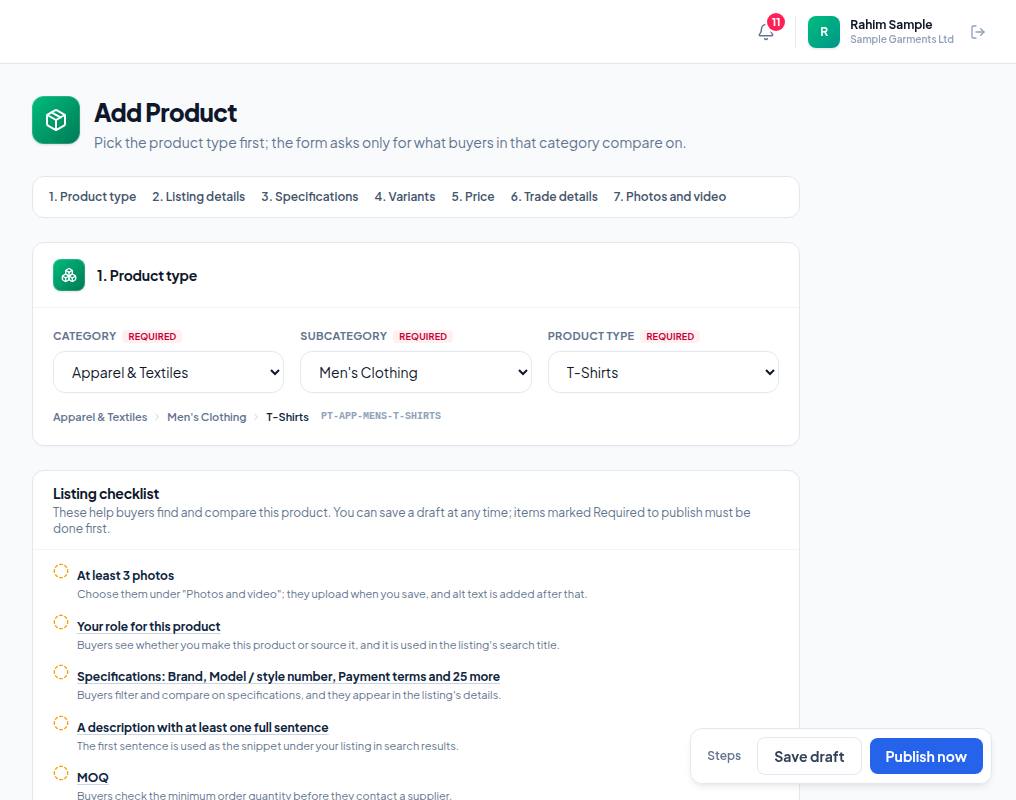
- 1. Category — the broad category (for example Apparel & Textiles), then Subcategory. The row above lists the form's seven steps — click any to jump there.
- 2. Product type — the exact type (for example T-Shirts). Choosing it opens the rest of the form.
- 3. Listing checklist — what is still missing before you publish. Items marked Required to publish must be done first.
- 4. Save draft — keep unfinished work for later. Buyers never see drafts.
- 5. Publish now — put it live on exportain.com straight away. These two buttons float at the bottom of the page the whole time.
Step 2: title, description, MOQ
- Product title — a clear name with material, weight and finish (up to 200 characters).
- Choose your role: Manufacturer (you make it), Trader / supplier (you source it from another factory) or Manufacturer and trader. It can differ for each product.
- A short description (optional) and the Description — material, how it is made, packaging, certifications, export suitability.
- MOQ (minimum order), MOQ unit and Lead time (days). These are required for products.
- HS code — type it if you know it, or look it up. Exportain never fills in an HS code for you, because it is your legal declaration.
- Tick "Eco friendly" only if the product is really made or packed in an environmentally responsible way; Exportain can remove the label.
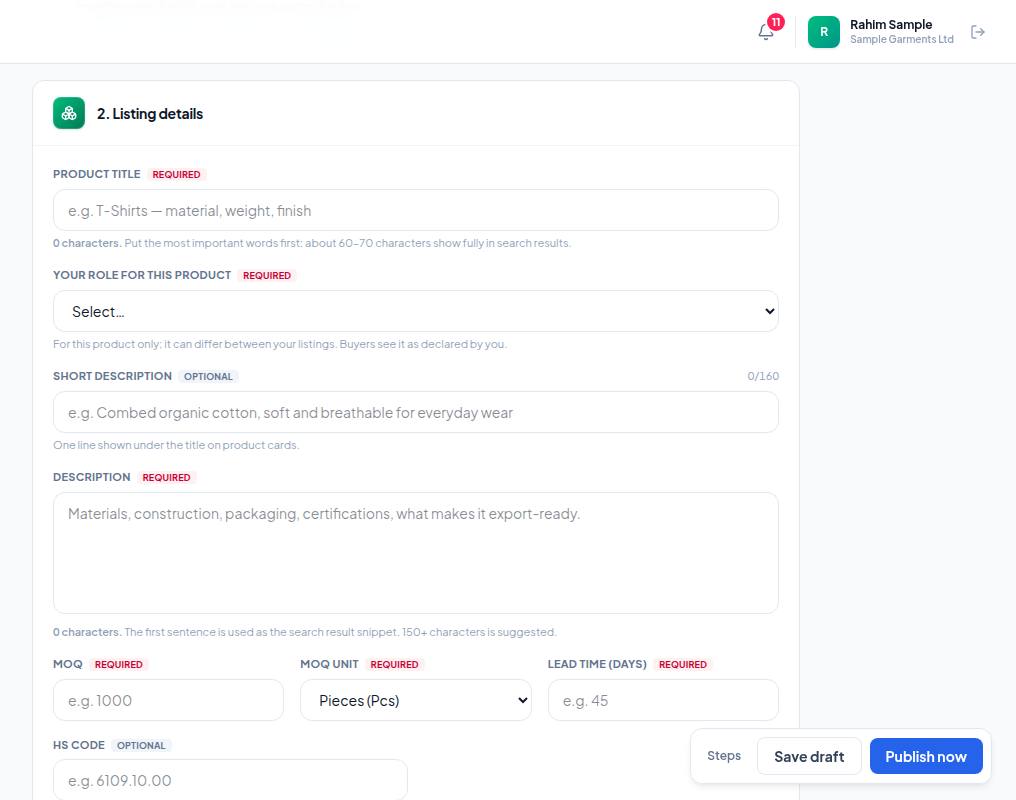
- 1. Product title — put the words buyers search for first (for example "Cotton T-Shirt 180 GSM"). Search results show roughly the first 70 characters.
- 2. Your role for this product — Manufacturer, Trader / supplier, or both. Buyers read it to know whether you make the product yourself.
- 3. Description — its first sentence is the snippet under your listing in search, so make it complete and clear.
- 4. MOQ — minimum order, with MOQ unit and Lead time (days) next to it. All three are required.
- 5. HS code — type it, or use Find my HS code. It is your own declaration.
Steps 3–6: specifications, variants, price, trade details
- 3. Specifications — attributes for the product type (for example fabric, GSM, sizes); fields marked Required are required. Buyers filter and compare on them.
- 4. Variants — separate variants by colour, size and so on (optional; where the type has them).
- 5. Price — Currency, Incoterm and price tiers by order quantity (up to 6). Start the first tier at your MOQ. Exportain's rule: every product shows a price — a product cannot be published without at least one price tier (it can be saved as a draft).
- 6. Trade details — Ports of loading (where you can ship from — required to publish), SKU (Exportain assigns it), Production capacity, Customization offered, Samples.
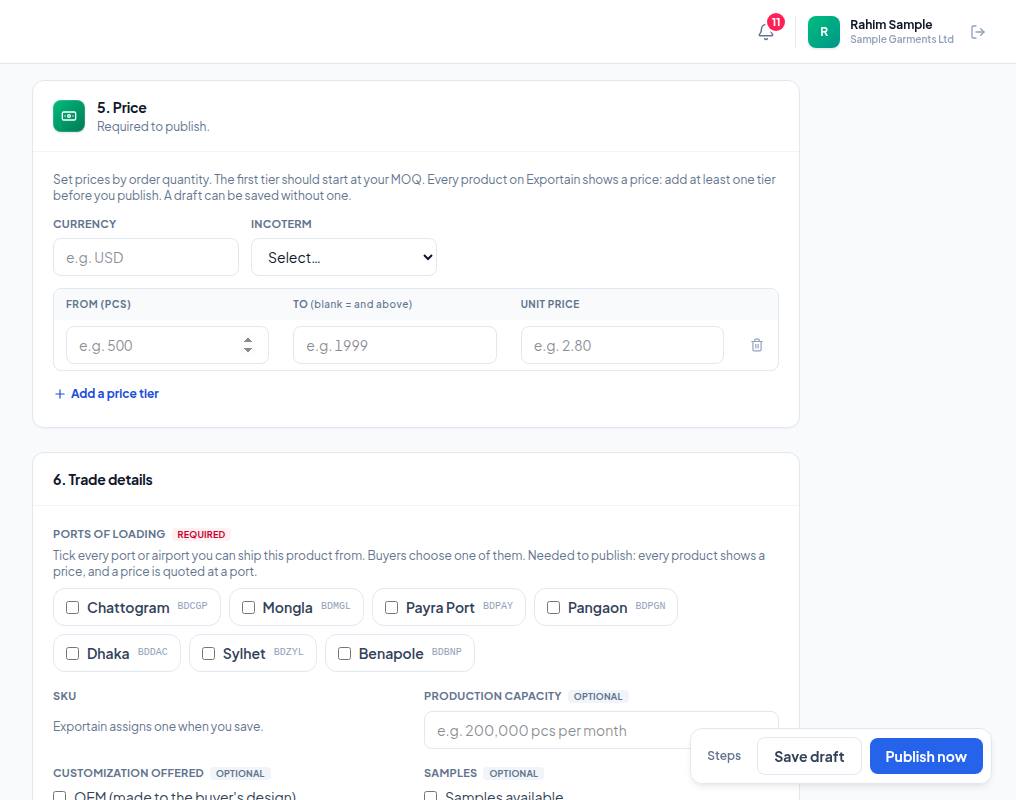
- 1. Currency — the price currency, as three letters (for example USD).
- 2. Incoterm — the terms the price is on, for example FOB. Buyers compare prices on it.
- 3. The first row: From (your MOQ), To (blank means "and above") and Unit price. To offer a lower price for larger orders, press Add a price tier.
- 4. Ports of loading — tick every port or airport you can ship from. The buyer chooses one of them.
The checklist at the top of the form shows what is left; when everything is filled in it says Listing complete. Every item on this checklist is filled in.
Photos and video
- In the form's Photos and video step, press Choose photos. The first photo is the cover.
- If you have a YouTube or Vimeo video, paste the video's own link into YouTube or Vimeo video link — for example youtu.be/…, youtube.com/watch?v=… or youtube.com/shorts/….
- Photos and the link upload as soon as you save. If one is refused, a message says why.
- After saving, the edit page (Photos and videos) lets you reorder photos, upload MP4 videos and write photo descriptions (alt text).
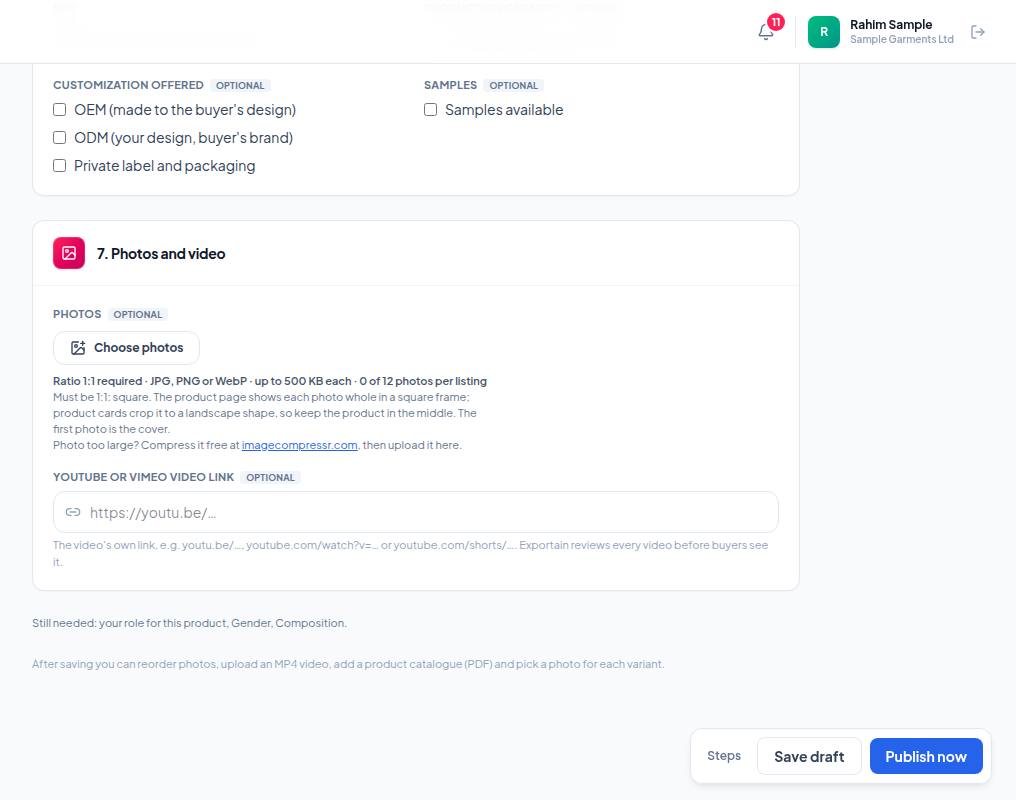
- 1. Choose photos — square (1:1) photos, up to 500 KB each. Add at least 3; the first is the cover.
- 2. YouTube or Vimeo video link — the video's own link. Buyers see the video only after an Exportain admin has reviewed it.
| What | Limit |
|---|---|
| Photos | JPG, PNG or WebP; square (1:1); up to 500 KB each; up to 12 per product. Larger photos are refused — make them smaller first |
| Video upload | MP4 only; up to 50 MB; up to 3 videos per product (links included) |
| Video link | YouTube or Vimeo |
| Product catalogue | One PDF, up to 10 MB (Product catalogue (PDF) on the edit page) |
Saving a draft and publishing
- The buttons at the bottom switch on once every required field is filled in. What's missing is listed under Still needed: ….
- Not ready to show it? Save draft. To publish straight away, Publish now.
- Later you can Publish or Unpublish from the Products list. The View live icon opens the live page.
Editing and deleting products
- The pencil icon (Edit) in the Products list — change anything, then Save Changes.
- Tabs: All, Draft, Published, Unpublished, Archived. If you move to a smaller plan, products above the limit are Archived — not deleted.
- The bin icon (Delete) deletes a product.
- On the edit page, the Certifications section links certificates to a specific product.
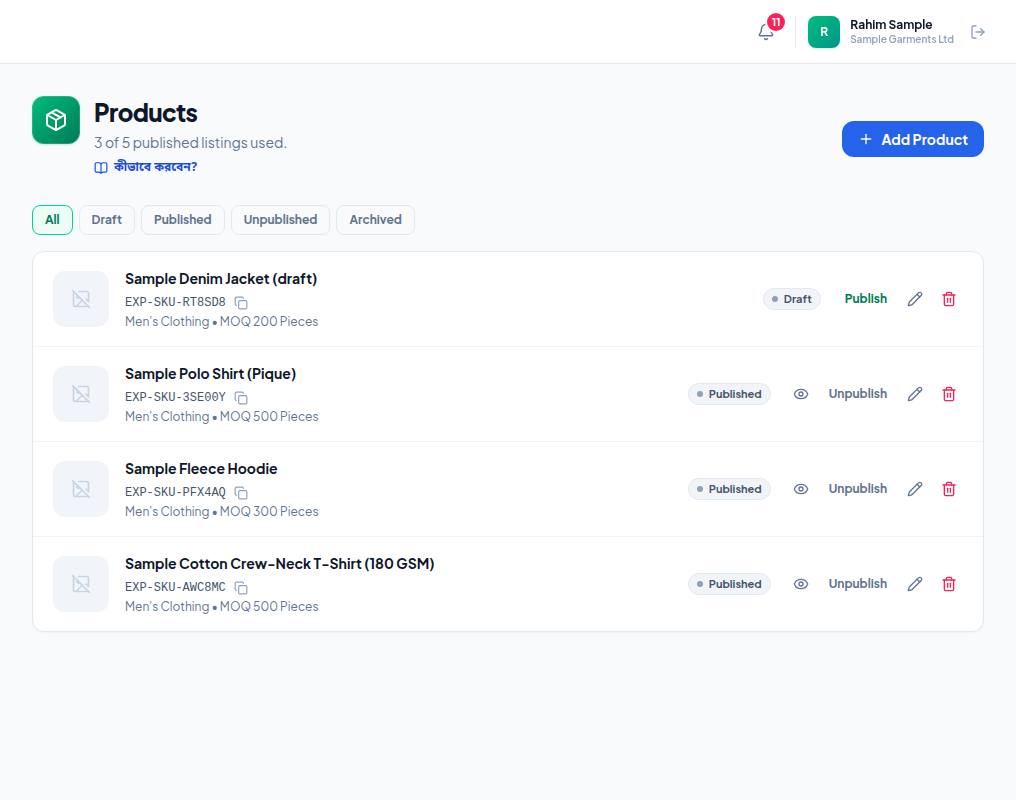
- 1. Add Product — a new product. The line above it shows how much of your plan is used (for example 3 of 5 published listings used.).
- 2. Tabs — Draft shows only drafts, Published only live products.
- 3. Publish next to a draft — one press, once price, photos and the required fields are in place.
- 4. Unpublish next to a live product — hides it from buyers (nothing is deleted). The eye icon opens the live page, the pencil edits, the red bin deletes.
Frequently asked questions (FAQ)
I added a video but it doesn't show on the product page.
Every video waits for an admin's approval (In review). It shows once approved.
My WebM or MOV video won't upload.
Only MP4 (up to 50 MB) is accepted. Or upload it to YouTube and paste the link.
What happens if I don't give a price?
The product cannot be published. Every product on Exportain must show a price, so pressing Publish now without one shows Add at least one price. Every product on Exportain shows a price. next to the price field (and as a message when you press Publish in the Products list). Add at least one price tier. Without a price the product can stay a draft.
Everything is filled in but the button won't switch on.
Look at the Still needed: … line at the bottom — it is often your role (Manufacturer/Trader) or a required specification.