

Certificates and payout bank account
Submitting certificates such as ISO or OEKO-TEX to be checked, and getting the bank account approved that funds-hold money is paid into.
Last checked: 1 October 2026
এই গাইডটি বাংলায় পড়ুনContents
Submitting a certificate
At the bottom of the Verification page, under Extra trust details (optional), is the Certificates card. Certificates don't change your badges, but buyers see the checked certificates on your company page.
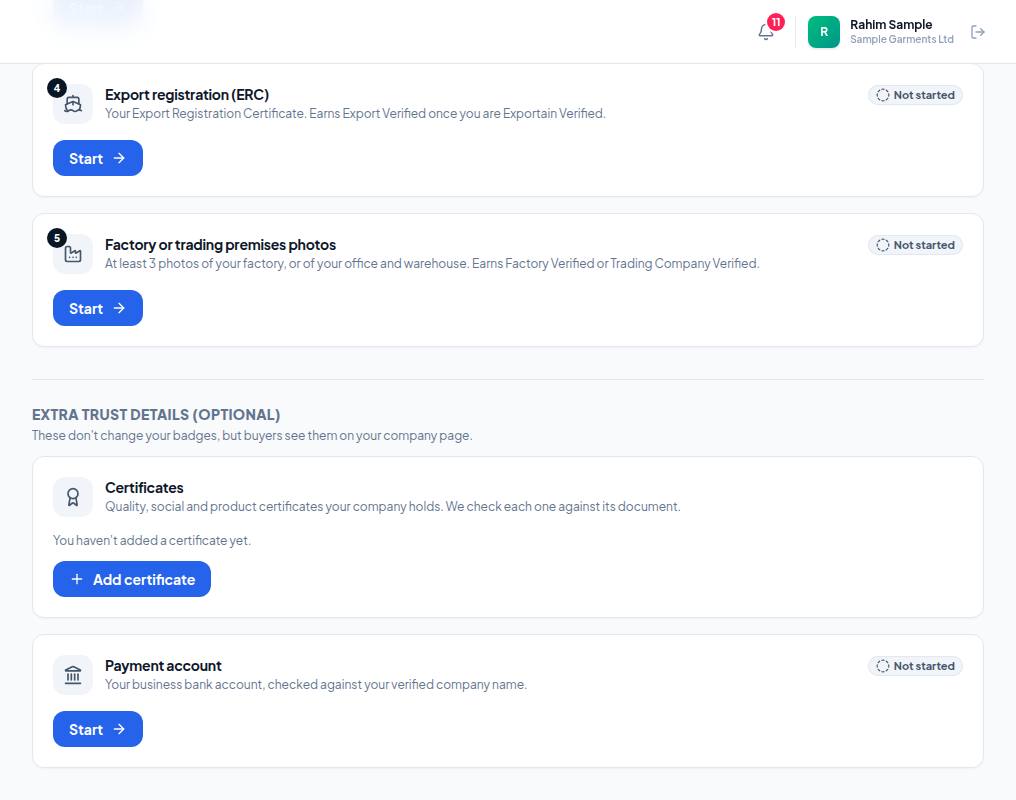
- 1. Certificates — your company's quality, social or product certificates. Each document is checked.
- 2. Add certificate — opens the form for a new certificate (steps below).
- 3. Payment account — the bank account funds-hold money is paid into. Press Start to submit it (last part of this guide).
- Choose the certificate from the Certificate list; if it isn't there, choose Other certificate and type its name.
- Issued by — the body that issued it.
- Optional: Certificate number (only Exportain reviewers see it), Issued on, Valid until (leave empty if it has no expiry).
- What it covers: Whole company, One site (give the site address) or Specific products (choose your products, up to 100).
- Upload the Certificate document (PDF, JPG, PNG or WEBP, up to 10 MB) and submit.
Once approved it shows Verified until … or Verified, no expiry.
Payout bank account (Payment account)
- Verification → Start on the Payment account card.
- Bank name, and optionally Branch.
- Account name — as the bank shows it; it is checked against your verified company name.
- Account number — as printed by the bank.
- Optional: Routing number, SWIFT/BIC (8 or 11 characters), Currency.
- Proof of account — a bank certificate, cheque leaf or statement header showing the account name and number (PDF, JPG, PNG or WEBP, up to 10 MB).
- Submit. The review result comes by email.
Frequently asked questions (FAQ)
What happens if I don't give a bank account?
When funds-hold money is released, Exportain cannot record the payout, so the money stays held.