

Seller Center dashboard tour
How to read the first page after you sign in: the menu, the counters, the quick-action buttons, your verification status, notifications, the menu on a phone and messages — with numbered screenshots.
Last checked: 1 October 2026
এই গাইডটি বাংলায় পড়ুনContents
The Overview page at a glance
Overview opens when you sign in. Nothing is submitted on this page — it shows where your account stands and what to do next.
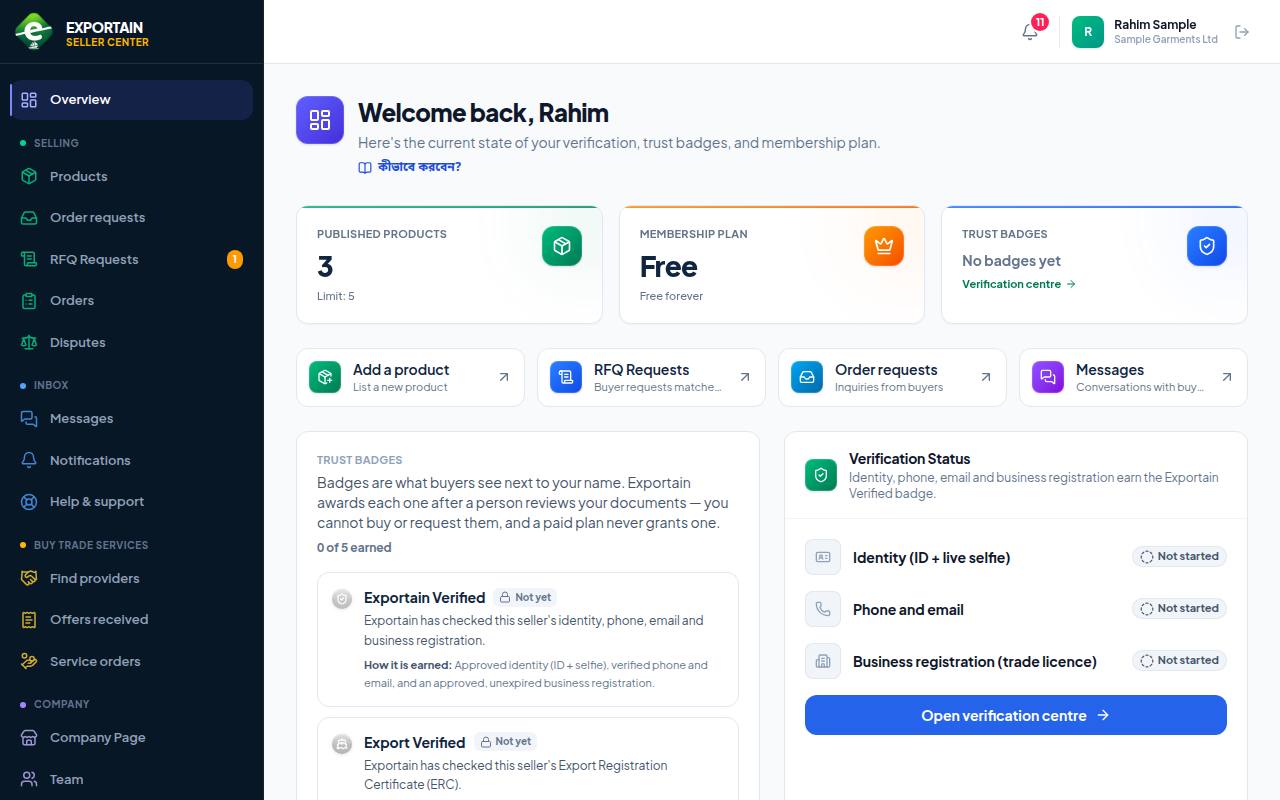
- 1. The menu — tasks grouped under Selling (products, order requests, RFQs, orders, disputes), Inbox (messages, notifications, support), Buy trade services (service companies) and Company (company page, team, verification, plan, settings). An orange number next to RFQ Requests is how many RFQs are waiting for your answer.
- 2. Counters — Published products shows how many products are live and your plan's limit (for example Limit: 5). The two cards next to it show your plan and your trust badges.
- 3. Quick actions — Add a product, RFQ Requests, Order requests and Messages: the things you do most, one click away.
- 4. Verification Status — where each check stands: identity, phone and email, trade licence (for example Not started). Press Open verification centre to finish them.
- 5. The bell — the red number is your unread notifications. Click it for the latest; the full list is under Notifications in the menu.
- 6. Your name and company sit top right, with the Sign out button. On a shared computer or phone, always sign out when you finish.
- At the bottom of the menu: the Trust Badges card (badges you have) and the Need help? card (support email and WhatsApp number).
- Under almost every page title there is a কীভাবে করবেন? link to the guide for that task (the Bengali guide; each one has a switch to English). সাহায্য / Guides in the menu opens all guides.
- On a large screen, the small arrow at the bottom of the menu narrows it to icons only.
The Seller Center on a phone
On a phone the menu is hidden so the page has room to read. Everything works from a phone too.
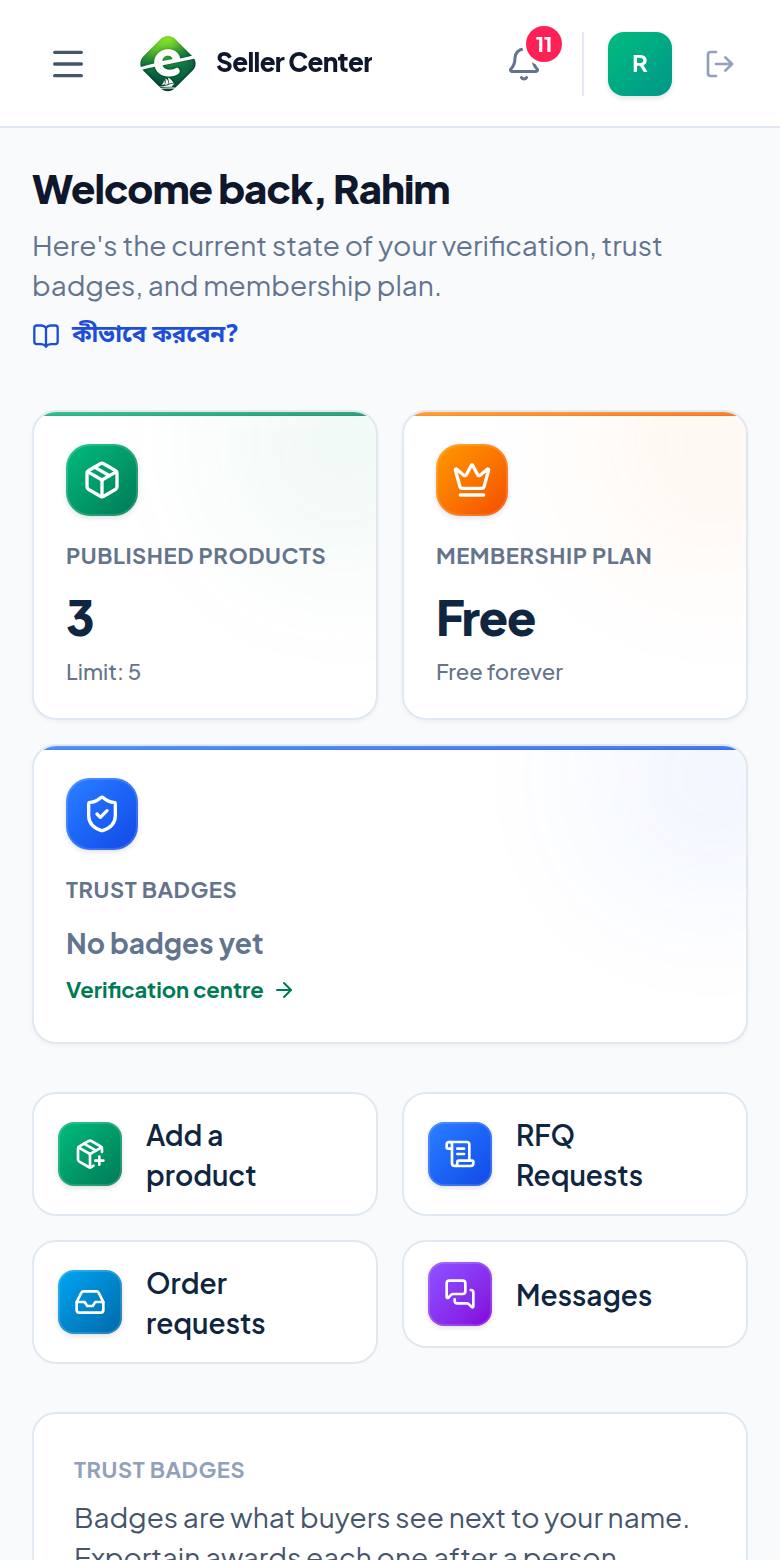
- 1. The three-line button (Open menu) opens the full menu.
- 2. The bell — your new notifications, as on desktop.
- 3. The counter cards stack one under another; scroll down for the rest.
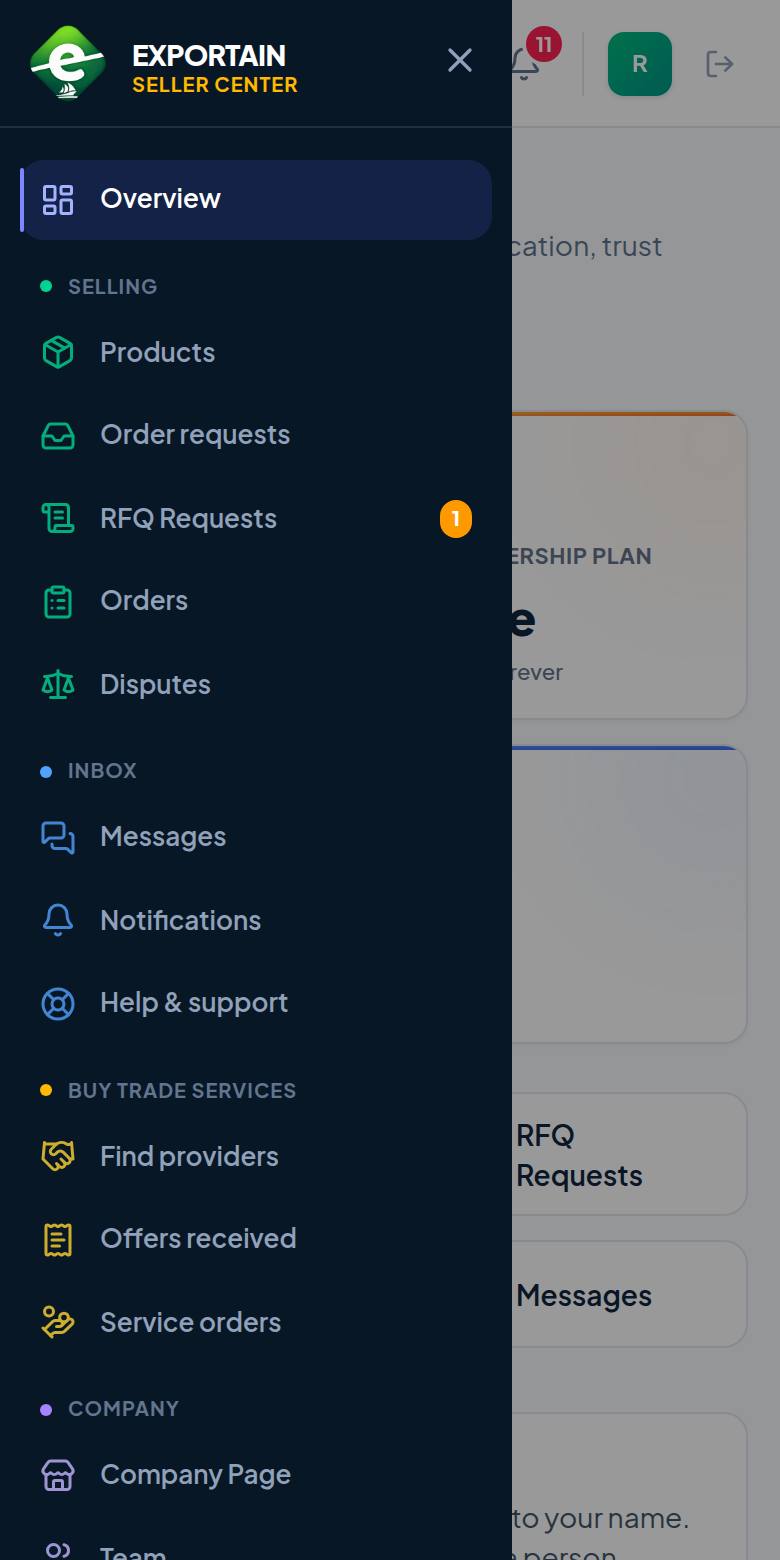
- 1. Products — your product list; add a new product.
- 2. RFQ Requests — buyers' RFQs matched to you; the number shows how many await your answer.
- 3. Messages — chat with buyers.
- 4. Press ✕ (Close menu) when done, or tap anywhere outside the menu.
Messages: talking to buyers
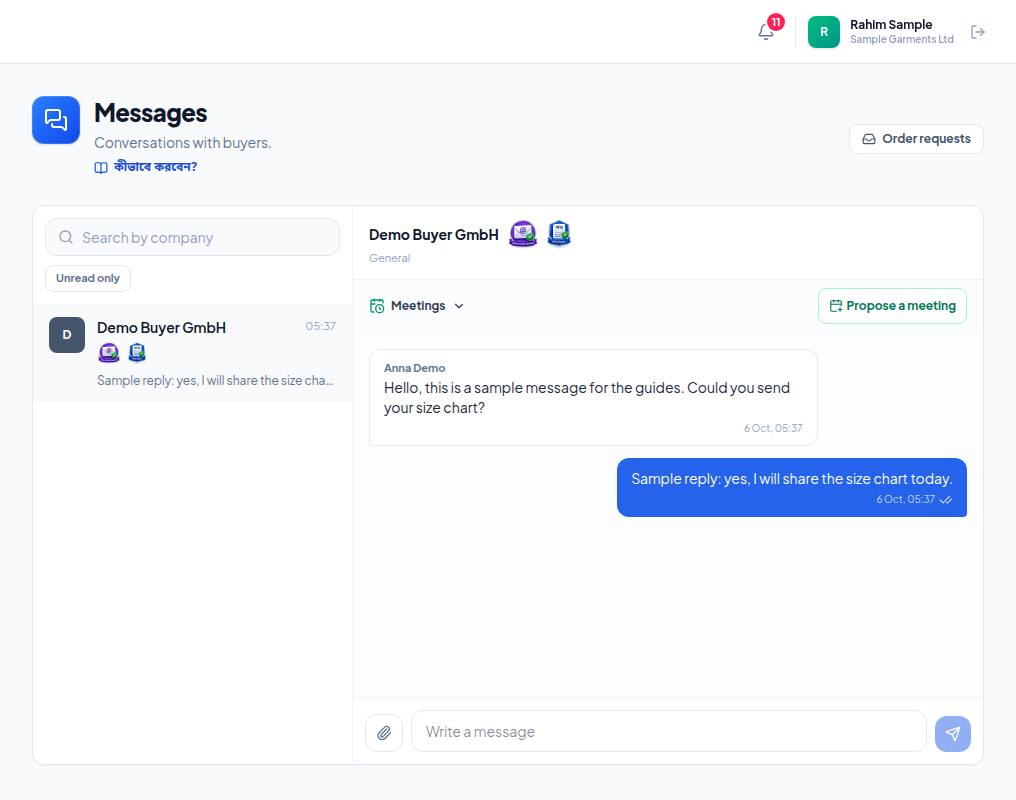
- 1. Search by company — find a conversation by the buyer's company name.
- 2. Unread only — show only unread conversations.
- 3. Type your reply in the box at the bottom and send it. You can change your own message for 2 minutes after sending; messages cannot be deleted.
Proposing meetings, which links are allowed and what the ticks mean: Messages and meetings.
Frequently asked questions (FAQ)
Why don't I see Help & support in the menu?
It is hidden while support tickets are switched off. Write to support@exportain.com or send a WhatsApp message instead.
I don't see Company Page and Team.
Those two are for the owner and admins only. If you are a team member, ask the owner.