

Company page and profile
Logo, cover image, theme, factory photos, address and what you sell — what buyers see on your public storefront.
Last checked: 1 October 2026
এই গাইডটি বাংলায় পড়ুনContents
Who can change it
- Only owners and admins see the Company Page menu item.
- Branding (logo, cover) and Storefront theme — owner only.
- Facility photos and Company details — owner or admin.
Everything on this page is what buyers see on your public storefront on exportain.com.
Logo, cover and theme
- Open Company Page.
- Under Branding, upload a Company logo — it shows on your storefront, product cards and in search.
- Add a Cover image — the wide banner across the top of your storefront; a landscape picture works best.
- Pick one of the five colour palettes under Storefront theme.
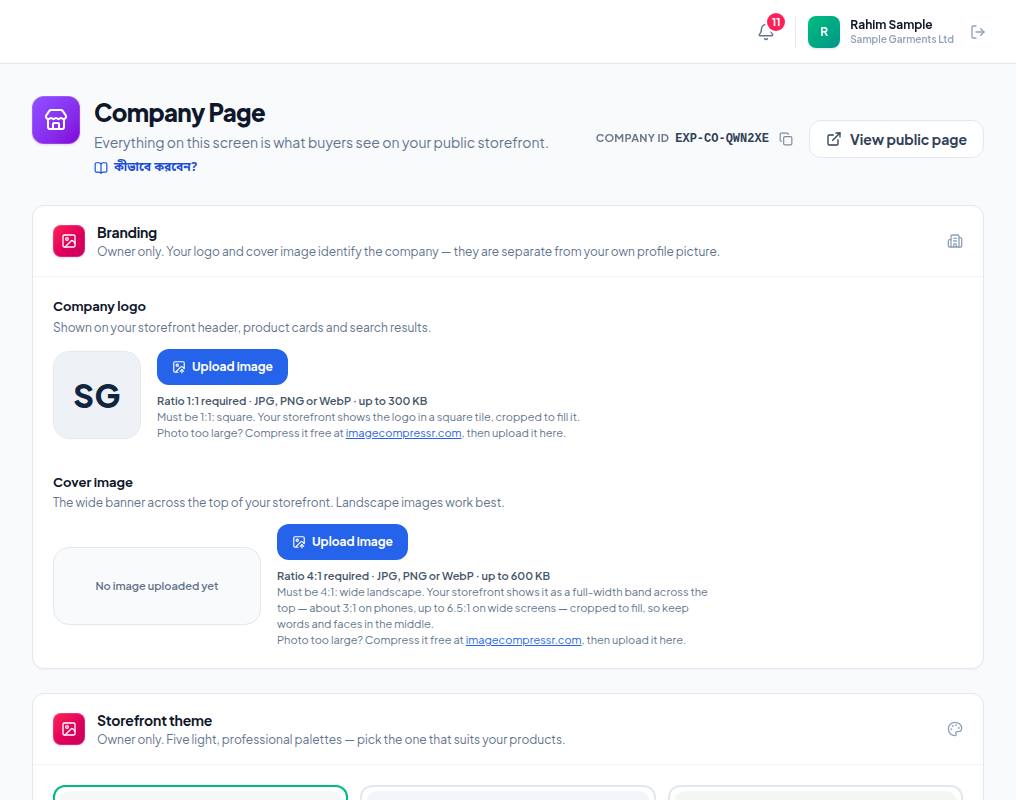
- 1. Company logo — square (1:1), JPG/PNG/WebP, up to 300 KB. This is what shows on your storefront, product cards and in search.
- 2. Cover image — a wide 4:1 banner, up to 600 KB. Keep faces and text in the middle: on phones the sides are cropped.
- 3. View public page — open your storefront in a new tab and see it as buyers do. Your Company ID is next to it.
- 4. Storefront theme — five light palettes; pick the one that suits your products.
Address, year established and what you sell
- Under Company details, fill in Street address, Country and City.
- Year established (optional) — shown as "Est. year" on your product cards.
- What you sell → Choose categories — pick your product categories.
- Certifications — one per line — each certificate on its own line (for example ISO 9001:2015).
- Save.
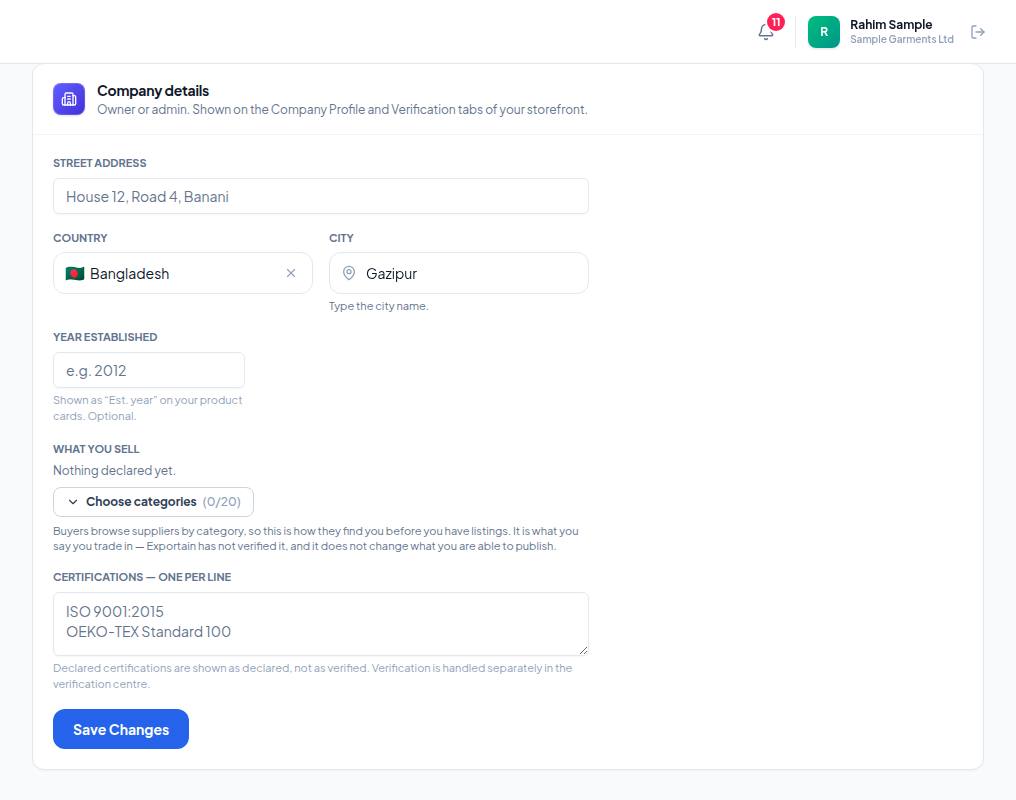
- 1. Street address — the full address of your office or factory. Country, city and year established follow.
- 2. What you sell → Choose categories — every category you sell in (up to 20).
- 3. Certifications — one per line — one certificate per line.
- 4. Finish with Save Changes; nothing is saved until you press it.
Factory or office photos (gallery)
Under Facility photos, add pictures of your factory, warehouse or office; write each photo's caption first, then press Add a photo. They appear in your storefront's gallery.
Business type
Under Settings → Business type, choose Manufacturer, Trading company or Manufacturer and trading company. It is your own declaration; buyers do not see it as verified information. Only the owner or an admin can change it.
Frequently asked questions (FAQ)
I'm a team member and can't see Company Page.
It is for owners and admins only. Ask the owner.