

Leads and offers
Answering buyers' and sellers' service requests, and sending, replacing or withdrawing firm price offers.
Last checked: 1 October 2026
এই গাইডটি বাংলায় পড়ুনContents
Reading and answering leads
- Open Leads in the menu. Filters: All, New, Quoted, Contacted, Declined, Closed.
- Choose a lead — the company, service, route (Route:) and details show.
- Write your answer or price idea and press Send Response.
- To change its status: Mark Contacted, Mark Closed or Decline.
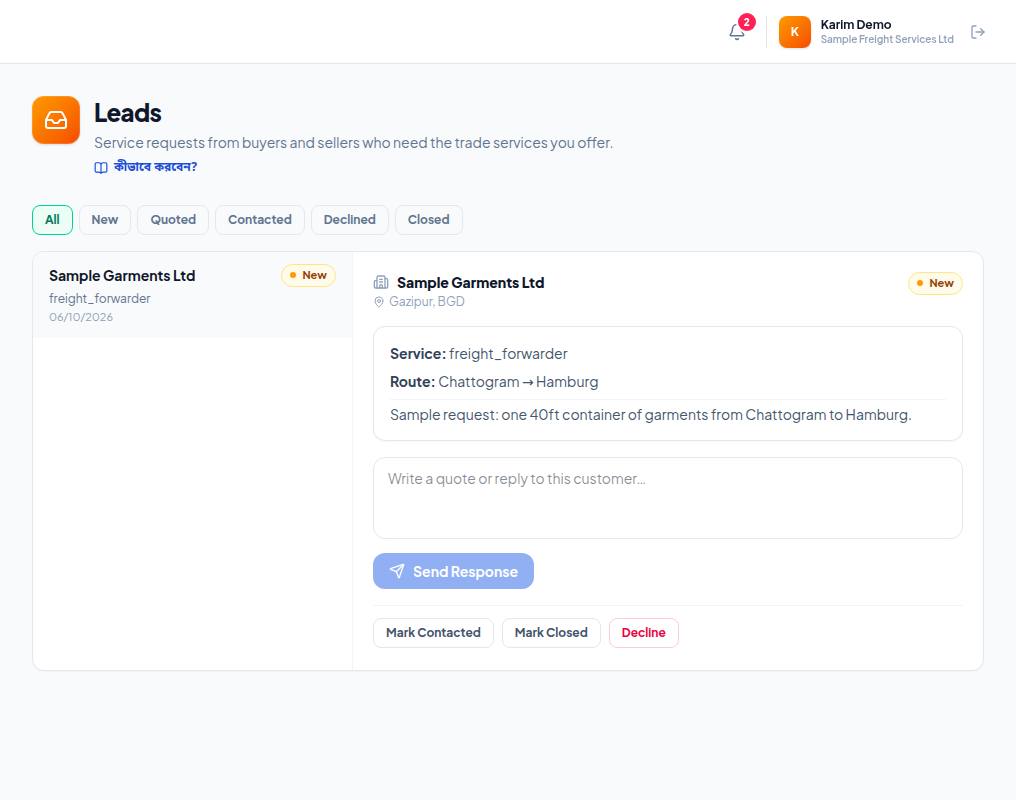
- 1. Filters — New shows only new leads you haven't answered.
- 2. Click a lead — the company, service, route (Route:) and the customer's description show on the right.
- 3. The answer box — write your price idea, what you need to know or when you can do it, clearly.
- 4. Send Response — sending it opens a conversation with the customer. Keep the lead's status tidy with Mark Contacted, Mark Closed and Decline below.
Sending a firm offer
Once the price is agreed, send an offer. An offer is a firm price for one job; the customer accepts or declines it as a whole.
- Offers → Write an offer.
- Who it goes to — choose the lead's or conversation's company (give the company ID if needed).
- Which service — which of your services.
- Title and What is included — say clearly what the price covers and what it doesn't.
- Price (at least 1) and Currency.
- Payment type: Online only, Offline only, Either or No preference — either way.
- Validity — how long the offer stays open (a time in the future).
- Send the offer.
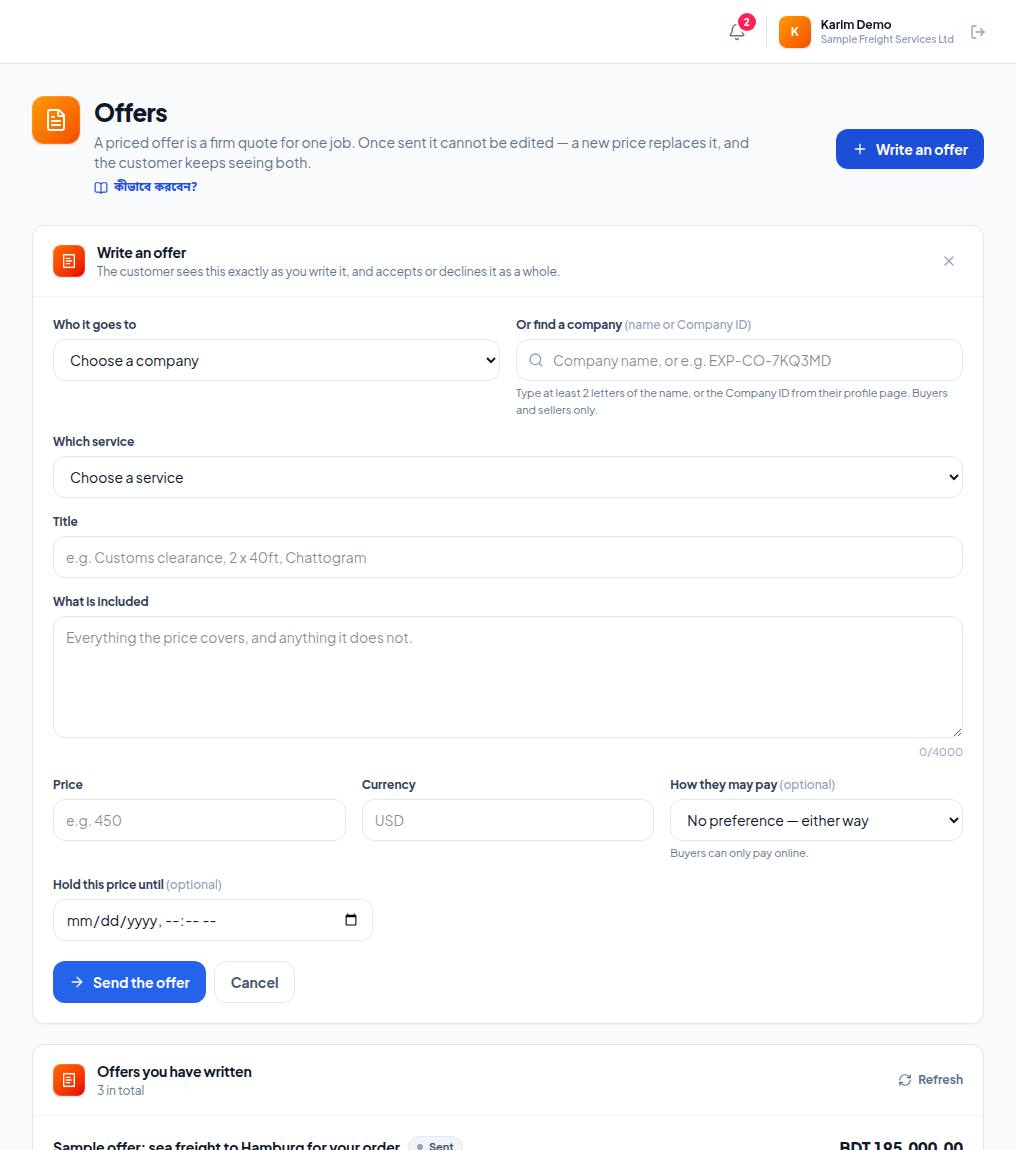
- 1. Who it goes to — choose the lead's or conversation's company; if it isn't listed, search by name or Company ID in the field next to it.
- 2. Which service — which of your services the offer is for.
- 3. Title — the job in one line, for example "Customs clearance, 2 x 40ft, Chattogram".
- 4. What is included — what the price covers and what it doesn't. The customer sees exactly this, so write it clearly.
- 5. Price, with Currency next to it.
- 6. How they may pay — online, offline or either. Below it, Hold this price until says how long the price stands.
Changing or withdrawing an offer
- A sent offer cannot be edited. To give a new price, replace it with a new offer (Replace this offer with a new price → Send the replacement). The customer still sees the old one too (superseded, with its original price).
- To withdraw it: Withdraw this offer? → Yes, withdraw. The customer can then no longer accept it.
- When the customer accepts, the offer becomes a service order — Service orders and payment.
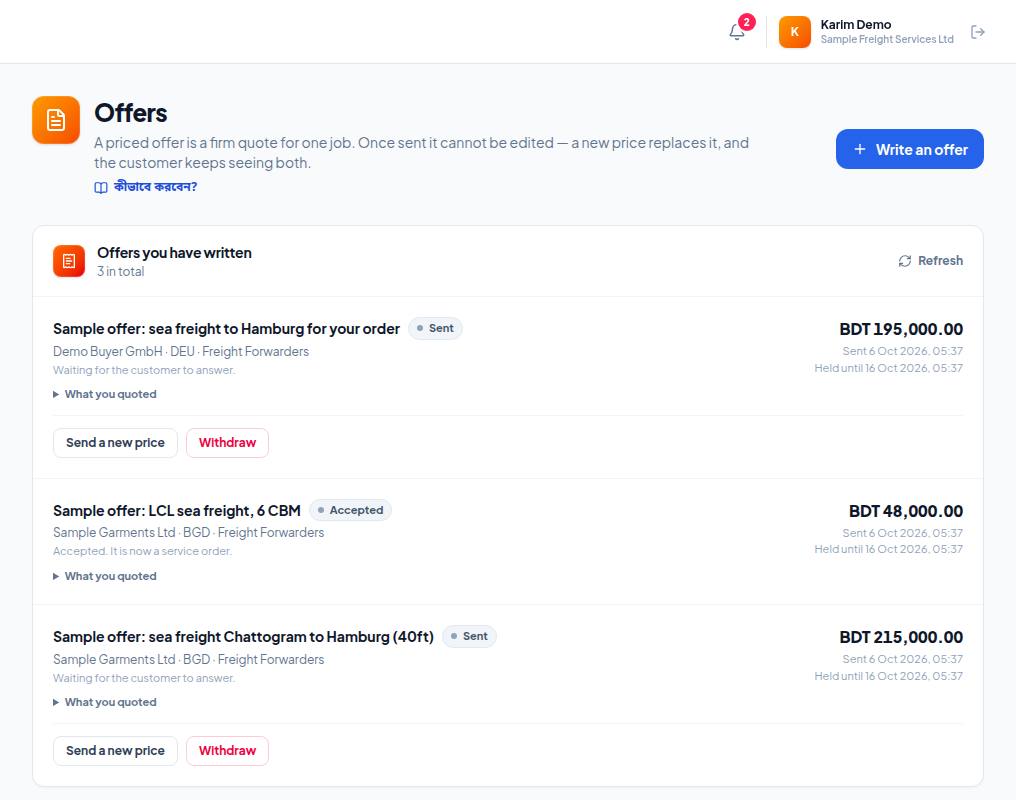
- 1. Write an offer — a new offer.
- 2. A sent offer — title, status (Sent), who it went to and the price; on the right, when it was sent and how long it holds.
- 3. Send a new price — change the price; a new offer replaces the old one (Replace this offer with a new price).
- 4. Withdraw — take the offer back before the customer accepts it.
Frequently asked questions (FAQ)
I put the wrong price on an offer.
It can't be edited. Replace it with a new price, or withdraw it (before the customer accepts).