

Publishing freight rates
Giving your routes out of Bangladesh and their prices — buyers see these prices next to products and in their cart.
Last checked: 1 October 2026
এই গাইডটি বাংলায় পড়ুনWho can publish rates
Only these profiles: freight forwarder, logistics company, shipping agent, NVOCC, cargo consolidation and trucking. Other companies see Freight rates need a freight profile.
Adding a route
- Freight rates → Add a route.
- Give the profile to publish from, the port or airport it leaves from, the destination country and the destination port or city.
- Choose the transport mode (choose the origin port first). Transit time in whole days, 1–180.
- Each price row: cargo type, container size or weight band (2–60 characters), price (more than zero), and the date the price holds until (Valid until).
- Save route.
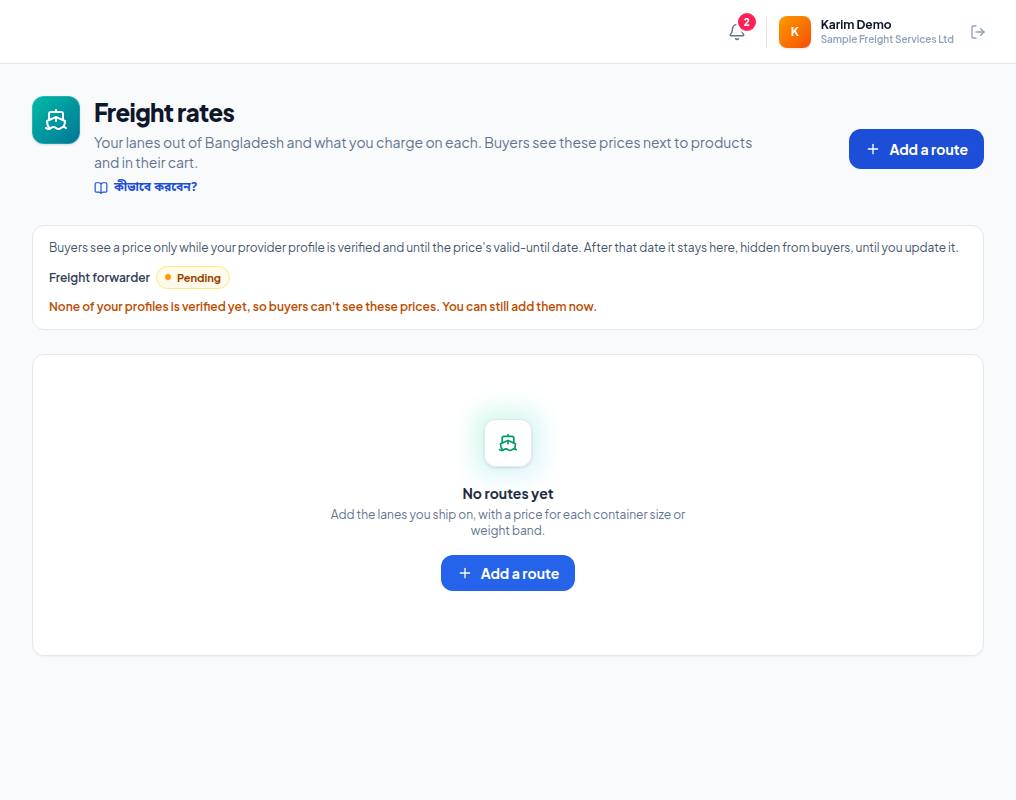
- 1. Add a route — a new route with its prices.
- 2. The profile's status — Pending means verification isn't finished.
- 3. The red text is a reminder: buyers won't see your prices until your profile is verified. You can still add routes now.
When buyers see them
Each route says Buyers can see this or Hidden from buyers. Buyers see it only when your profile is verified and the route has at least one price that has not expired.
Frequently asked questions (FAQ)
I added rates but it says Hidden from buyers.
Check that your profile's verification is finished and that the prices' Valid until date hasn't passed.