

Provider Center dashboard tour
The first page after you sign in: the menu, new leads, listed services, plan usage, notifications and the menu on a phone — with numbered screenshots.
Last checked: 1 October 2026
এই গাইডটি বাংলায় পড়ুনThe Overview page at a glance
Overview opens when you sign in. One page tells you how many leads await an answer, how many services are listed and how much of your plan you have used this month.
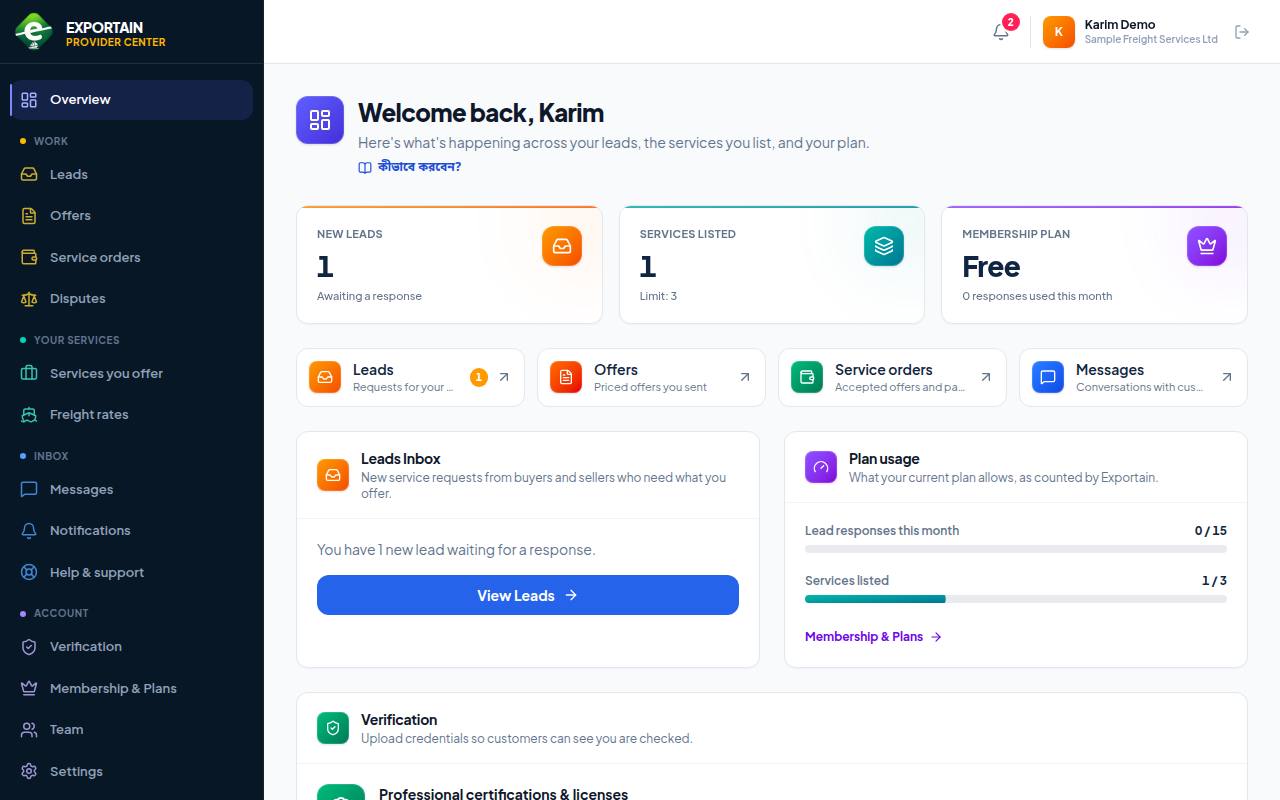
- 1. The menu — four groups: Work (leads, offers, service orders, disputes), Your services (service listings, freight rates), Inbox (messages, notifications, support) and Account (verification, plan, team, settings).
- 2. New leads — how many leads await your answer. Answering quickly improves your chance of winning the work.
- 3. Services listed — how many services are listed and your plan's limit.
- 4. Plan usage — how many leads you have answered this month (15 a month on Free) and how many services are listed.
- 5. The bell — new notifications.
- 6. Sign out — sign out when you finish, especially on someone else's device.
- Quick-action buttons: Leads, Offers, Service orders, Messages.
- The Verification card at the bottom goes straight to the verification centre — without verification your services don't show in the public directory.
- Under every page title, কীভাবে করবেন? opens the guide for that task (in Bengali, with a switch to English).
The Provider Center on a phone
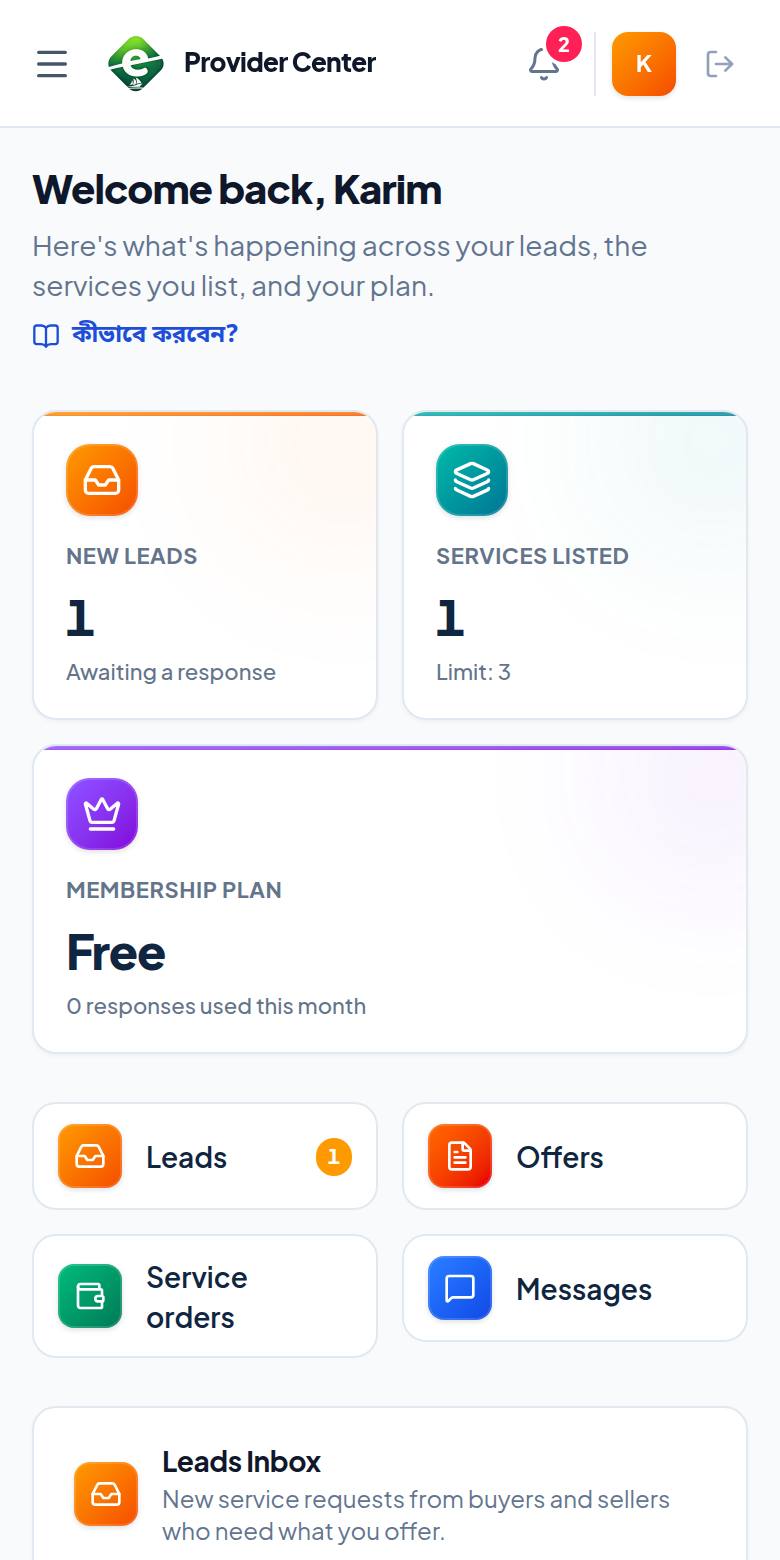
- 1. The three-line button (Open menu) opens the full menu.
- 2. The bell — new notifications.
- 3. New leads — shown first on a phone too, so no lead goes unnoticed.
Everything, from answering a lead to sending an offer, works from a phone. The messaging rules: Messages and meetings.
Frequently asked questions (FAQ)
I don't see the Team menu.
Team management is for owners and admins only.