

RFQs, quotations, revisions and counter-offers
Opening buyers' RFQs matched to you, showing interest, sending a quotation, and revising it when the buyer counters.
Last checked: 1 October 2026
এই গাইডটি বাংলায় পড়ুনContents
How an RFQ reaches you
When a buyer posts an RFQ (Request for Quotation — a request for prices), Exportain matches it to suppliers using your published products, declared categories, product HS codes and MOQ. If it matches, your company is told.
If the buyer chooses, the RFQ is also shown publicly (without their name) in the RFQ marketplace; you can quote from there too.
The RFQ list
- Open RFQ Requests in the menu. A number next to it is how many RFQs are waiting for your answer.
- The counters at the top: Matched, Need response, Quoted.
- Opening an RFQ marks it as "opened".
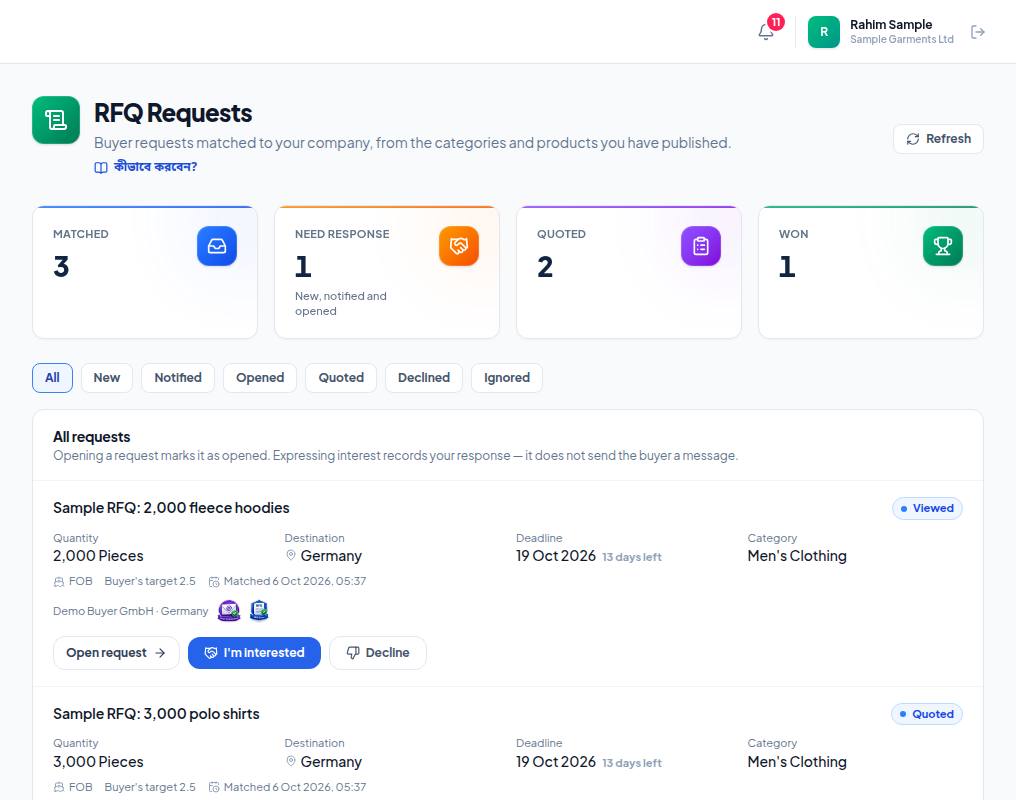
- 1. Need response — how many RFQs still await your answer. The aim is to bring this to zero.
- 2. Filters — All, New, Notified, Opened, Quoted, Declined, Ignored.
- 3. Open request — read the full request and send a quotation.
- 4. I'm interested — records your interest, but sends the buyer no message.
- 5. Decline — if the RFQ isn't for you. You can take it back later.
RFQ details and showing interest
- What the buyer asked for — quantity, destination, port, Incoterm, deadline, target price, HS code, certifications needed, the buyer's description and attachments.
- Why you were matched — why it was matched to you.
- Your response — I'm interested or Decline. Declined by mistake? Take the decline back.
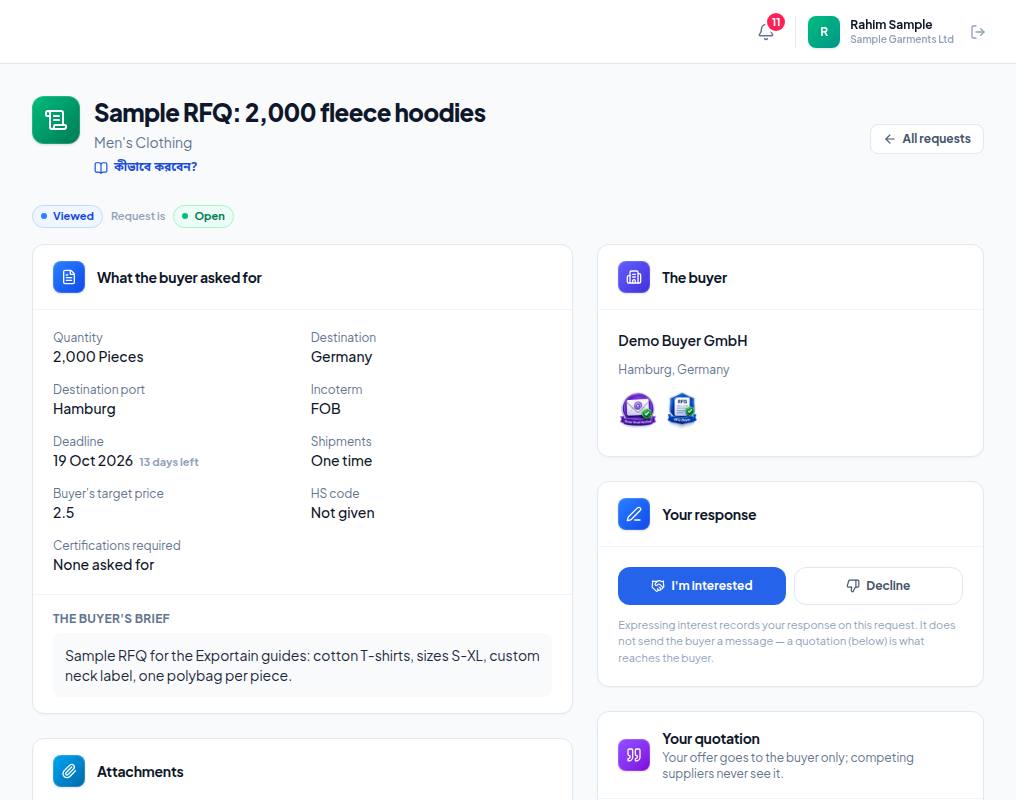
- 1. What the buyer asked for — quantity, destination, Incoterm, deadline (days left), target price, HS code and the buyer's own brief.
- 2. The buyer — the buyer's company, country and badges. The badges tell you how far the buyer is verified.
- 3. I'm interested — records your interest.
- 4. Decline — if not. Remember, only a quotation reaches the buyer.
Sending a quotation
- On the RFQ page, press Write a quotation under Your quotation; the form opens.
- Unit price (at least 0.01), Currency (three-letter code, for example USD), Quantity quoted, Minimum order quantity, Lead time (days).
- Choose the Incoterm: FOB, CIF, CFR, EXW, DDP or other.
- Offer valid until — a date after today.
- Payment terms — for example "30% advance, 70% against copy of B/L".
- Optional: Packaging (optional), Specifications and notes (optional). Write your loading port here — there is no separate port field.
- Press Send quotation. The buyer is told.
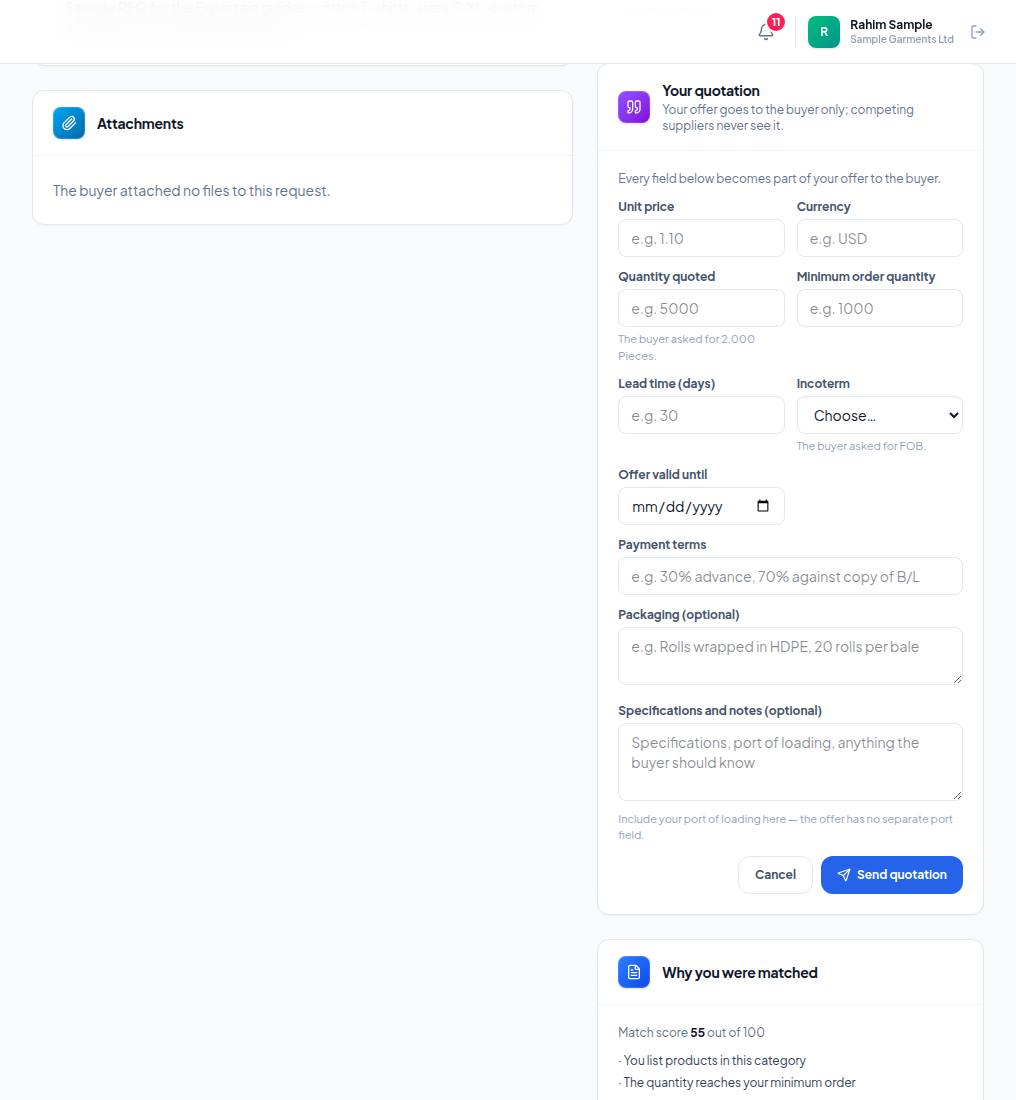
- 1. Unit price — the price per unit, with Currency next to it. Quantity, MOQ and lead time follow; what the buyer asked for is written under each field.
- 2. Incoterm — the term the buyer asked for shows under the field. If you quote on a different one, explain why in the notes.
- 3. Offer valid until — the date your price holds until. It must be after today.
- 4. Payment terms — for example "30% advance, 70% against copy of B/L". Put your loading port in the notes field below.
- 5. Send quotation — sends it. Only the buyer sees it, never other suppliers.
The buyer's counter-offer and revisions
The buyer can send a counter-offer that changes your price, lead time or validity. Then it says The buyer countered — your answer is awaited.
- Press Revise — answer the counter-offer. The form is filled in with your current offer.
- Change what you want and set a new validity date.
- Press Send revised offer.
To change your price on your own, use Revise my offer. Each version is listed as Version 1 · Your offer, Buyer's counter-offer and so on.