

Orders, shipment booking and tracking
The order after a quotation is accepted, booking the shipment and updating each step — which the buyer sees on their own order page.
Last checked: 1 October 2026
এই গাইডটি বাংলায় পড়ুনContents
The order list
When a buyer accepts your quotation, the order appears on the Orders page. The tabs are Active and Closed. Each row shows the order number, the buyer (with their badges), value, status, shipment and funds hold.
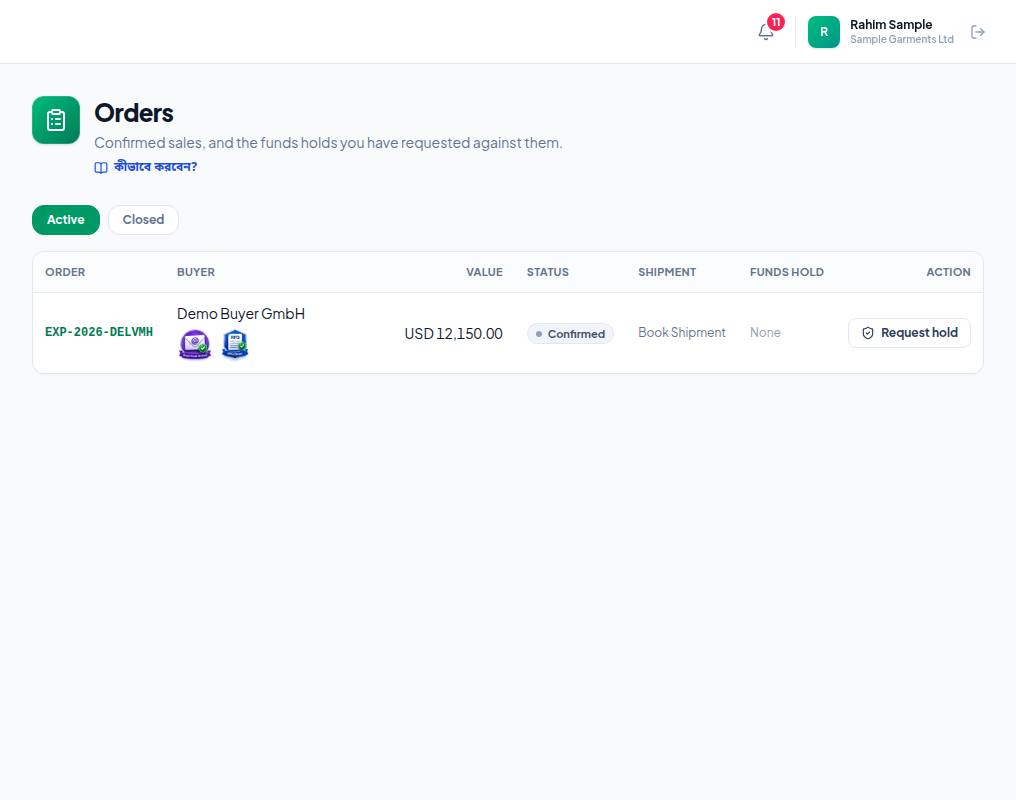
- 1. The order number (for example EXP-2026-…) — click it to open the order.
- 2. Book Shipment — shown while the shipment is not booked; it opens the booking form.
- 3. Request hold — ask the buyer to place money on hold with Exportain (Funds holds and payouts).
- 4. Closed — finished or cancelled orders.
Booking the shipment
- Click the order number, or Book shipment in the Shipment column.
- In the Book the shipment form, choose the Mode: Sea, Air, Land or Courier.
- Give the Destination port (required).
- Optional: Port of loading (optional), Carrier (optional), Tracking / B/L number (optional), Container (optional), Estimated departure (optional), Estimated arrival (optional).
- Press Book shipment. The buyer now sees the shipment on their own order page.
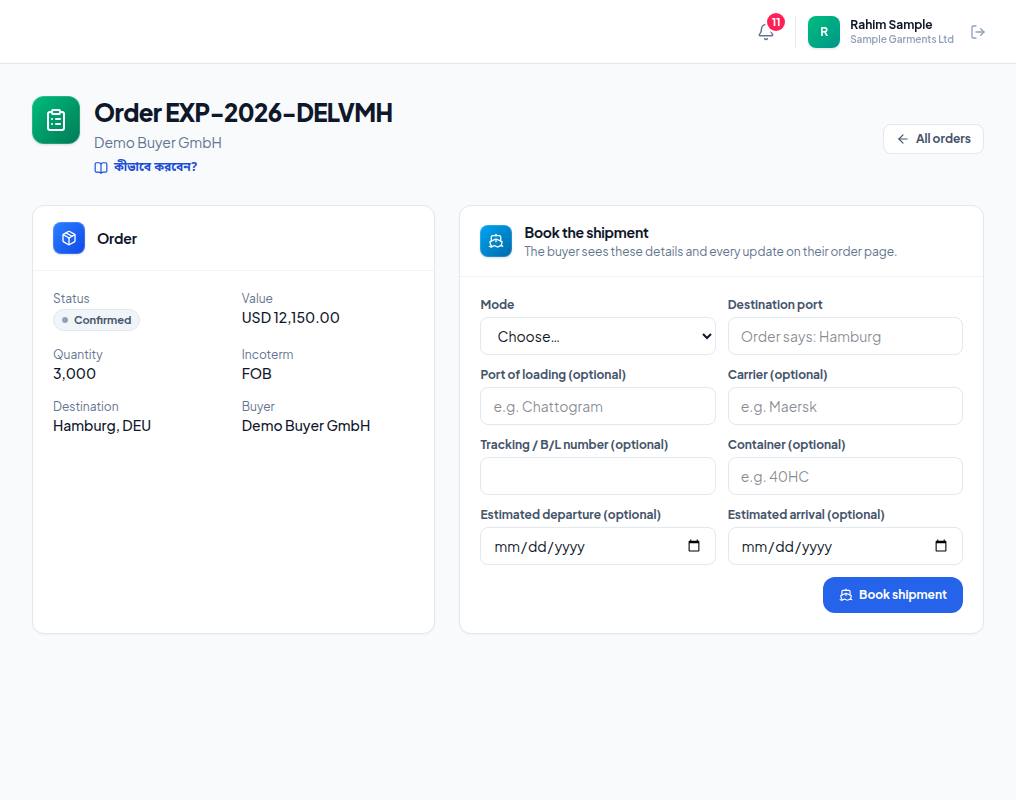
- 1. Order — status, value, quantity, Incoterm, destination and buyer. Check them before you start.
- 2. Mode — Sea, Air, Land or Courier.
- 3. Destination port — required. The field shows the order's destination (Order says: …); match it.
- 4. Book shipment — carrier, B/L number and dates can also be added later with Edit shipment details.
Updating each step
- Under Record an update, pick the next step in What happened: Departed, In transit, Arrived at destination, Import customs clearance, Delivered — or just a note with Note only (no status change).
- Optional Location (optional) (for example Colombo); write a headline (Update), for example "Container stuffed at Kamalapur ICD"; optional Details (optional).
- Press Record update.
When an order is "completed"
- With funds holds: the order completes on its own once the buyer confirms every open hold and the confirmed + refunded holds together cover the full order value.
- Otherwise an Exportain admin marks the order complete.
The payment terms for the goods (for example advance / against B/L) are in your quotation's Payment terms. On Exportain, the way to keep money on hold is a funds hold — see Funds holds and payouts.
Frequently asked questions (FAQ)
I marked the wrong step — how do I undo it?
Steps cannot go back. Explain on the timeline with Note only (no status change) and tell support.