

Buyer Desk dashboard tour
What you see after you sign in to buyer.exportain.com: the menu, posting a buying requirement, your badges, activity counts, search, notifications, the phone layout and messages — with numbered screenshots.
Last checked: 1 October 2026
Contents
The Overview page at a glance
Overview opens when you sign in. Nothing is submitted here: it shows where your sourcing stands and what to do next.
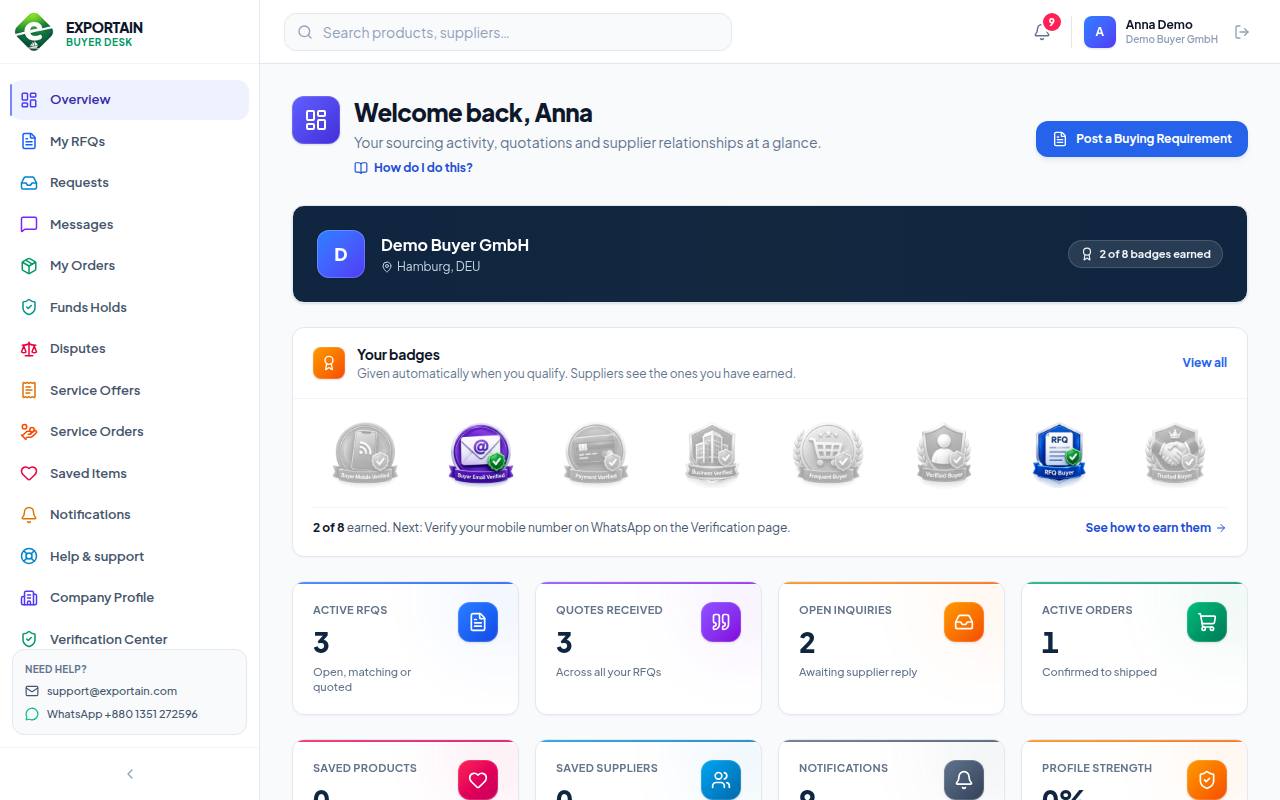
- 1. The menu — every task: RFQs, requests, messages, orders, funds holds, disputes, service offers and orders, saved items, notifications, help, company profile, verification, badges and settings.
- 2. Post a Buying Requirement — starts a new RFQ, the fastest way to get several quotations for one requirement.
- 3. Your badges — which of the eight buyer badges you have (in colour) and the next step to earn another. Suppliers see the earned ones next to your name.
- 4. Activity counts — Active RFQs, Quotes received, Open inquiries and Active orders; below them saved items, unread notifications and profile strength.
- 5. Search — find products and suppliers on Exportain without leaving the portal.
- 6. The bell — the red number is unread notifications. Your name, company and the Sign out button sit next to it.
- Further down: Sourcing Pipeline (requirements → quotations → orders), Buyer Profile (how complete your profile is), Quick Actions, and your Recent RFQs and Recent Inquiries.
- Every page has a How do I do this? link under its title that opens the matching guide. The Guides item in the menu opens all of them.
- On a large screen, the small arrow at the bottom of the menu narrows it to icons only.
On your phone
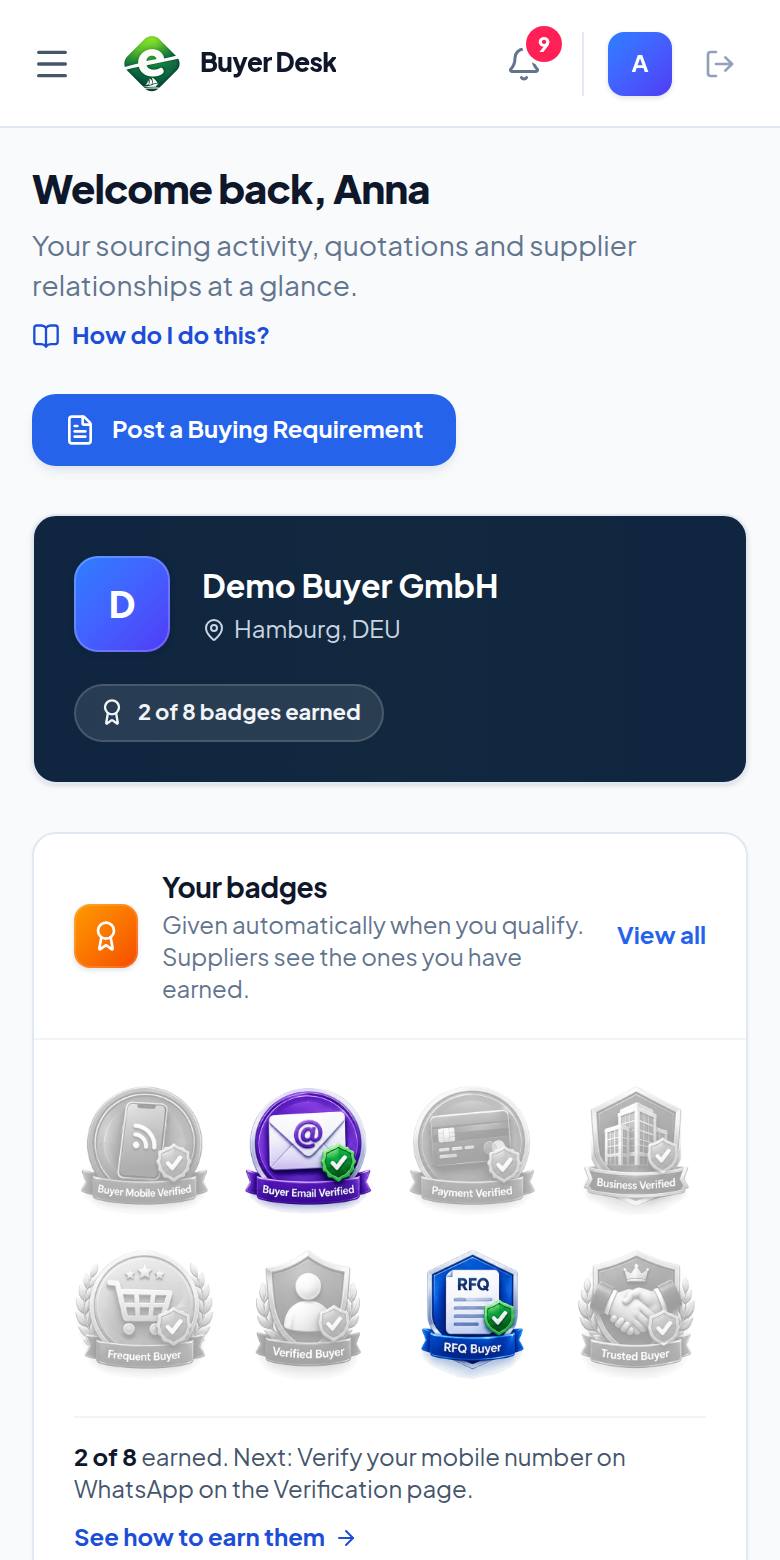
- 1. The menu button (three lines, Open menu) opens the full menu.
- 2. Post a Buying Requirement stays at the top, so a new RFQ is one tap away.
- 3. Your company card shows how many badges you have earned (for example 2 of 8 badges earned).
Messages with suppliers
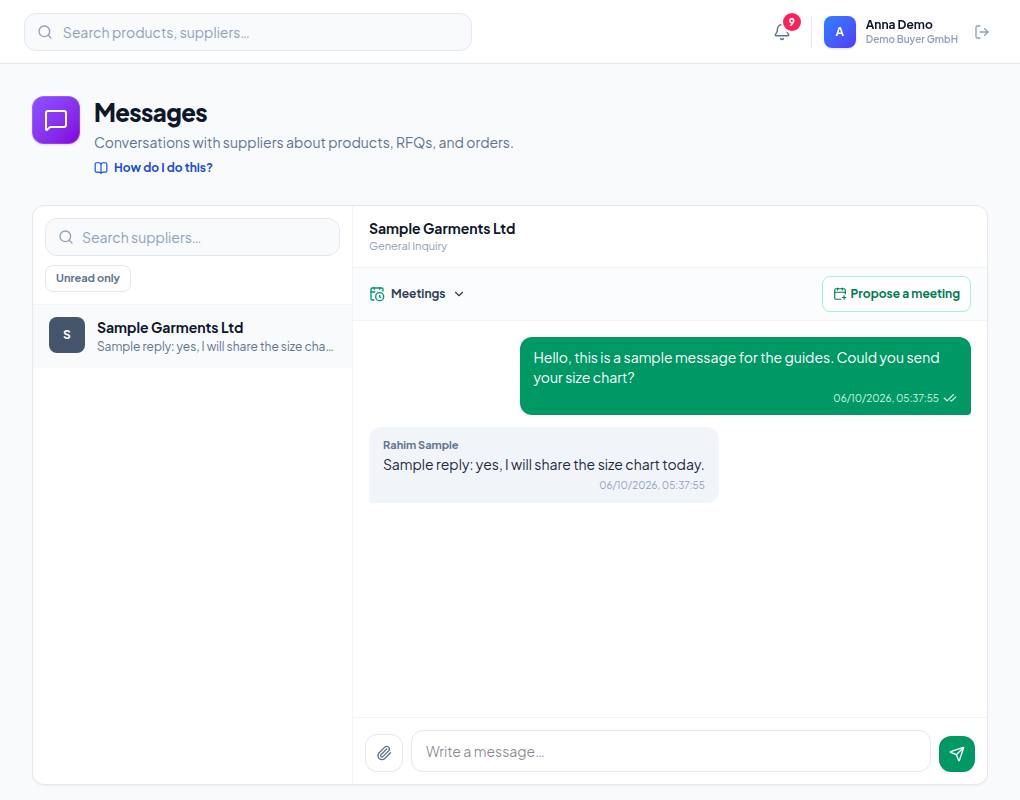
- 1. The search box — find a conversation by the supplier's name.
- 2. Unread only — show only conversations with unread messages.
- 3. Type your reply at the bottom and send it. You can edit your own message for 2 minutes after sending; messages cannot be deleted.
Meetings, links and what the ticks mean: Messages and meetings.
Frequently asked questions (FAQ)
I don't see Help & support in the menu.
It is hidden while support tickets are switched off. Write to support@exportain.com instead; the address is also in the Need help? box at the bottom of the menu.