

Help & support tickets
Opening a support ticket from the Seller Center when something goes wrong, reading the replies, sending files and closing it when solved — step by step with screenshots.
Last checked: 1 October 2026
এই গাইডটি বাংলায় পড়ুনContents
When to open a ticket
A product won't publish, verification is stuck, you have a payout question, or something doesn't work — open a ticket. Every reply stays in one place, so nothing gets lost and you can always check who said what.
Your tickets
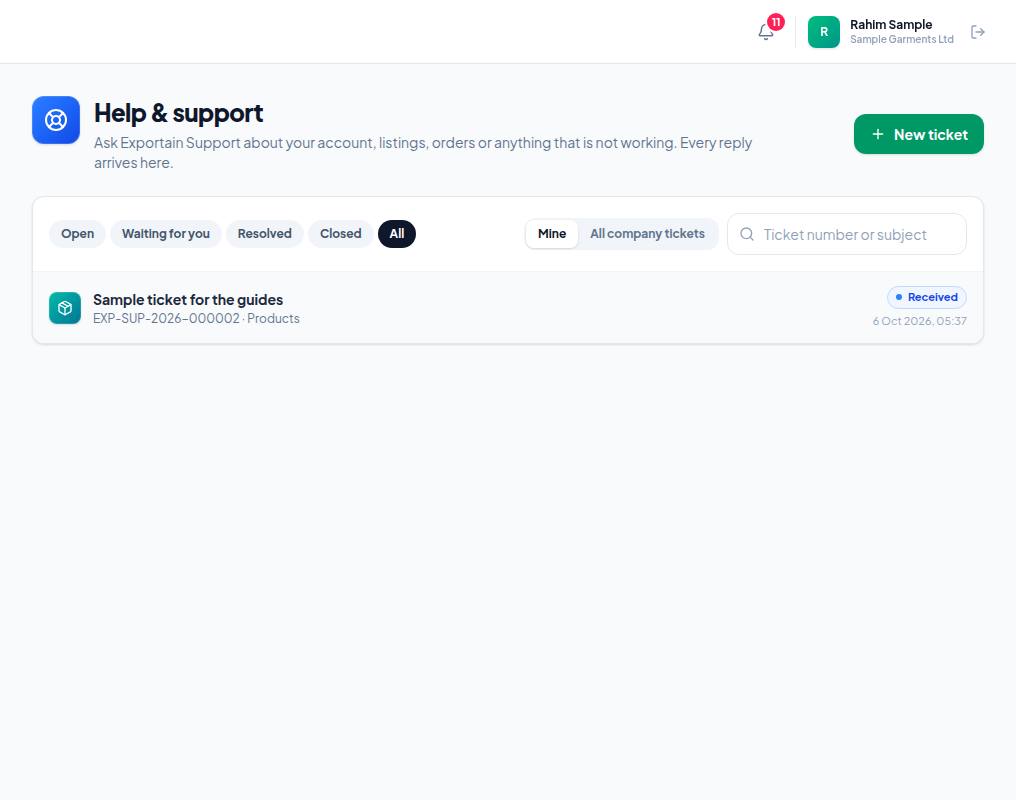
- 1. New ticket — open a ticket for a new problem.
- 2. Status filters — Open, Waiting for you, Resolved, Closed, All. Waiting for you means support needs your answer — look at those first.
- 3. Mine / All company tickets — owners and admins can see and answer every ticket of the company; other members see their own.
- 4. Each ticket shows its number (EXP-SUP-…), subject and status (Received, In progress and so on). Click it for the whole conversation.
Opening a new ticket
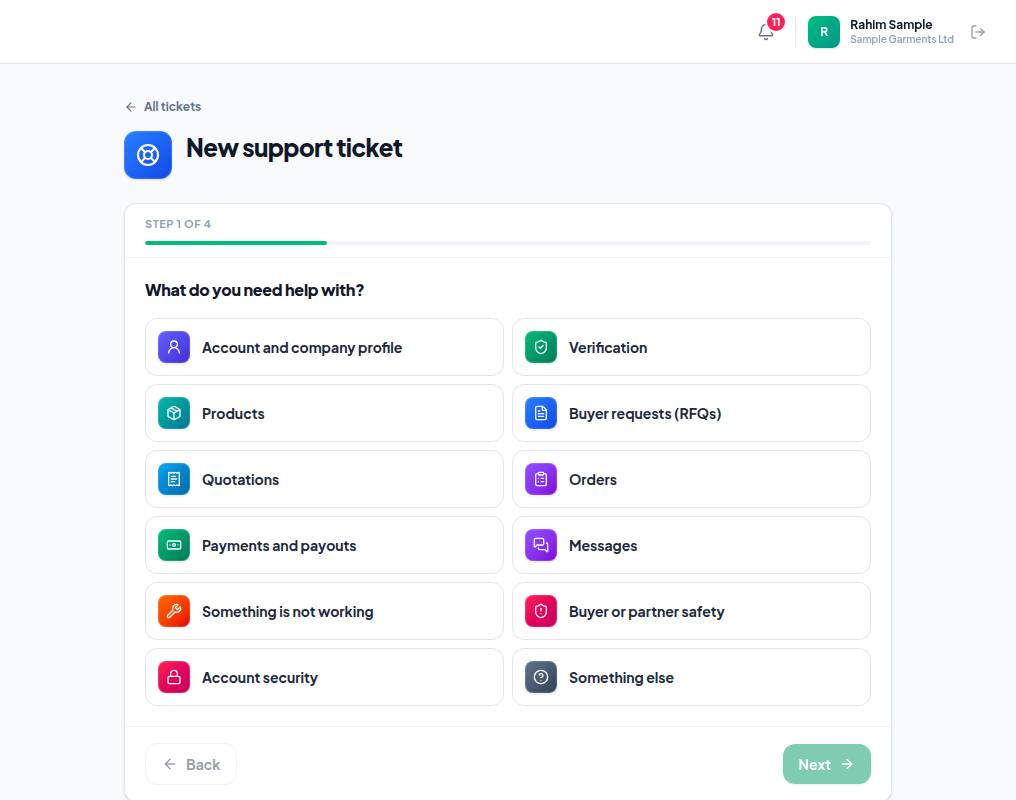
- 1. The top shows which step you are on (for example Step 1 of 4).
- 2. Pick the subject — for example Products if a product won't publish, Payments and payouts for money questions, Something is not working when a page fails. The right subject sends the ticket to the right team.
- 3. Next — go on to the next step.
- After the subject, some topics ask for the closest issue (Which of these is closest?) and which record it is about (a product or an order). Not sure? Skip.
- Describe the problem — a one-line Subject, then the details: what you were trying to do, what should have happened and what happened instead. Copy any error message exactly.
- Add screenshots or files — optional, but a screenshot gets a faster answer.
- Check and send — review it and press Send ticket. You get a ticket number.
Reading replies, answering and closing
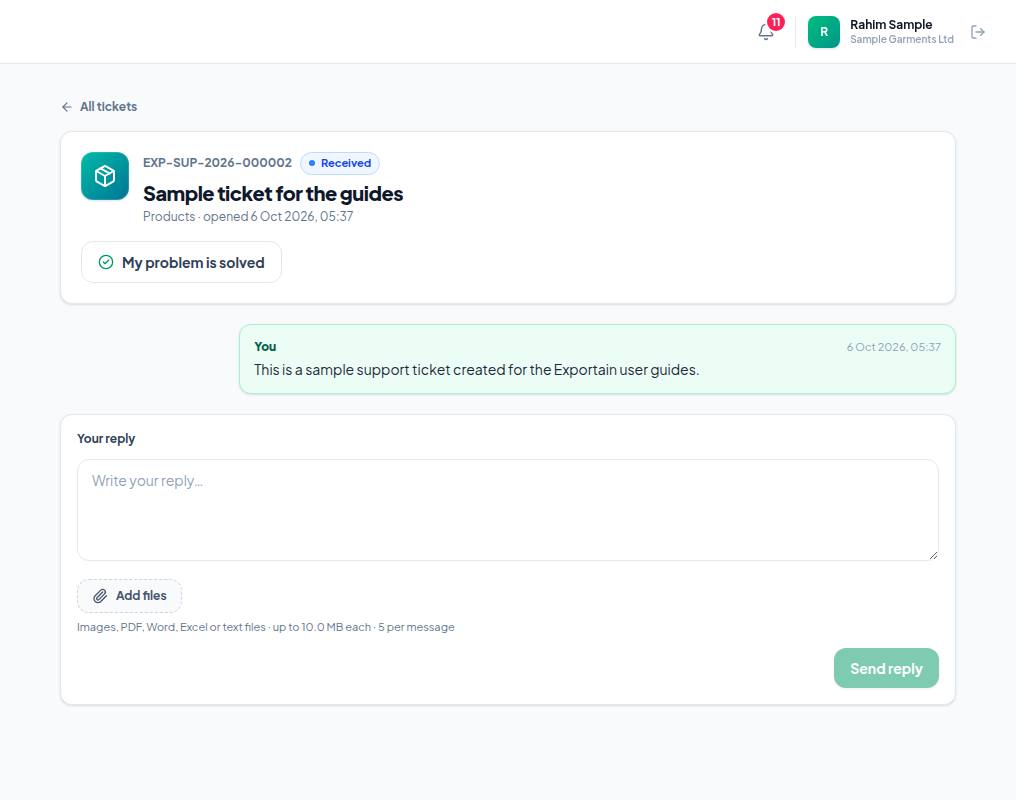
- 1. The ticket number and status — quote this number whenever you contact support.
- 2. My problem is solved — press it when the problem is fixed; the ticket becomes Resolved.
- 3. Your reply — answer here when support asks you something.
- 4. Add files — images, PDF, Word, Excel or text files; up to 10 MB each, 5 per message.
- 5. Send reply — sends your answer.
- When support replies you get a notification and an email. The email carries only the ticket number, subject and status — read the reply in the portal.
- For 7 days after a ticket is resolved you can reopen it by replying or pressing Reopen; after that it closes by itself (Closed).
- A closed ticket takes no more replies; if the problem comes back, start a follow-up ticket from it.
Frequently asked questions (FAQ)
How many tickets can I open?
Up to 5 new tickets an hour and 20 a day from one account, and up to 20 open at once per company. For the same problem, reply on the existing ticket instead of opening a new one.
It says I have no company.
A seller without a company cannot open tickets. Ask your company's owner to add you to the team, or write to support@exportain.com.