

Help & support tickets
Opening a support ticket from the Provider Center, reading the replies, sending files and closing it once it is solved.
Last checked: 1 October 2026
এই গাইডটি বাংলায় পড়ুনContents
When to open a ticket
Verification is stuck, leads aren't coming, you have a question about an offer or a payment, or something doesn't work — open a ticket. All replies stay in one place and nothing gets lost.
Your tickets
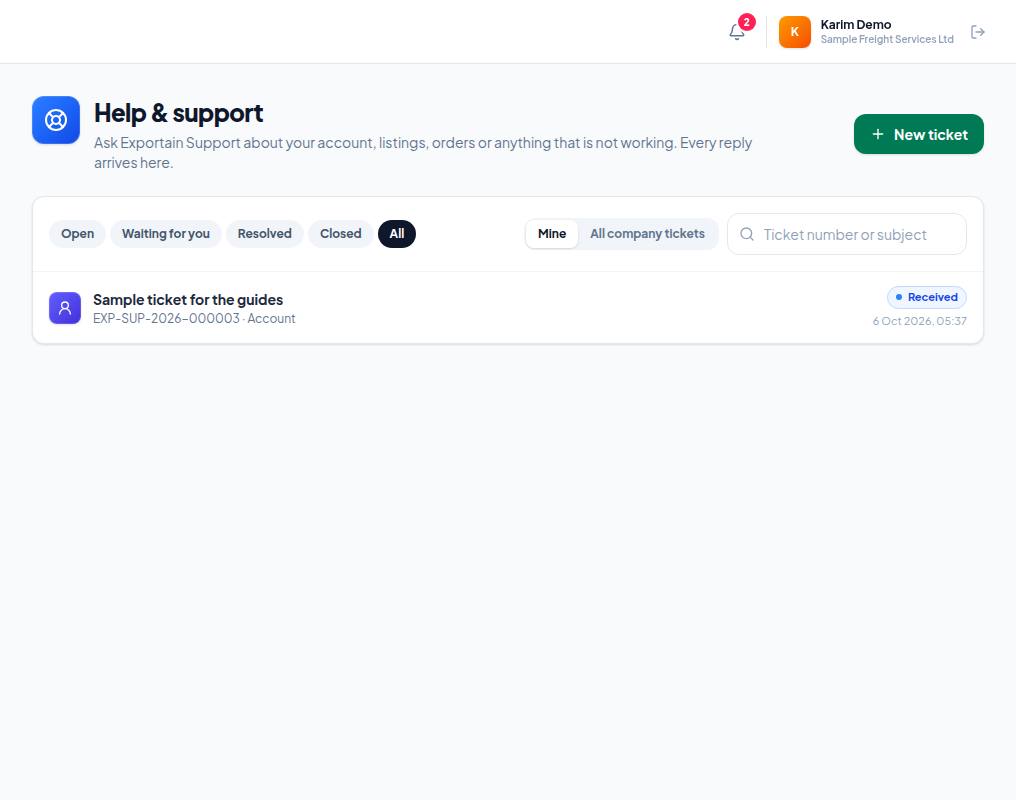
- 1. New ticket — a ticket for a new problem.
- 2. Waiting for you — support needs your answer; look at these first.
- 3. A ticket — number (EXP-SUP-…), subject and status. Click it for the whole conversation.
Opening a new ticket
- Press New ticket, choose the subject (for example account, verification, leads, payments) and press Next.
- Some subjects ask for the closest issue and the related record; not sure? Skip.
- A one-line Subject, then the details: what you were trying to do, what should have happened and what happened.
- Add a screenshot if you can, then check everything on Check and send and press Send ticket.
Replies, solving and reopening
- When support replies you get a notification and an email (the email has only the number, subject and status). Open the ticket and answer in Your reply; Add files attaches files (up to 10 MB each, 5 per message).
- When the problem is fixed, press My problem is solved.
- For 7 days after it is resolved you can reopen it with Reopen or by replying; then the ticket closes. You can start a follow-up from a closed ticket.
Frequently asked questions (FAQ)
Can I open a ticket without a company?
No. Without a company you cannot open a ticket; write to support@exportain.com.