

Help & support tickets
Opening a support ticket from the Buyer Desk, reading Exportain's replies, adding files, and closing or reopening a ticket — with numbered screenshots.
Last checked: 1 October 2026
Contents
When to open a ticket
Open a ticket when something blocks you: a quotation you can't accept, a payment question, a supplier you are worried about, or a page that doesn't work. Every reply stays on the ticket, so nothing gets lost.
Your tickets
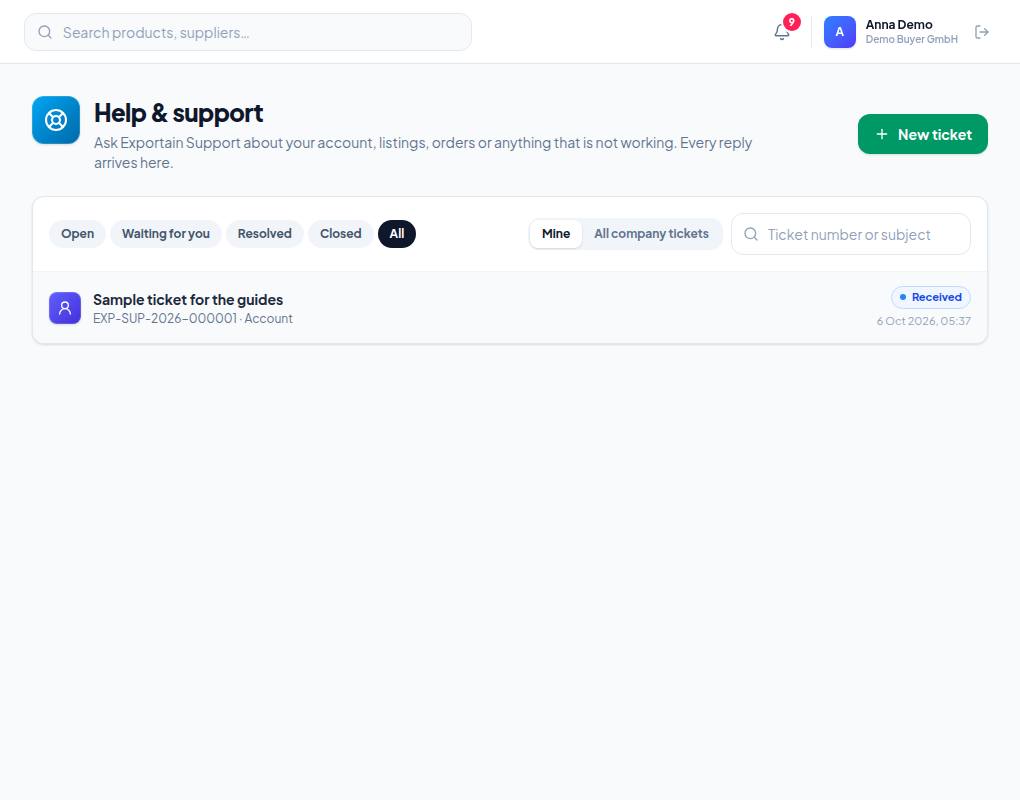
- 1. New ticket — open a ticket for a new problem.
- 2. Status filters — Open, Waiting for you, Resolved, Closed, All. Waiting for you means support needs your answer; look at those first.
- 3. Each ticket shows its number (EXP-SUP-…), subject and status (Received, In progress and so on). Click it to read the conversation.
Opening a new ticket
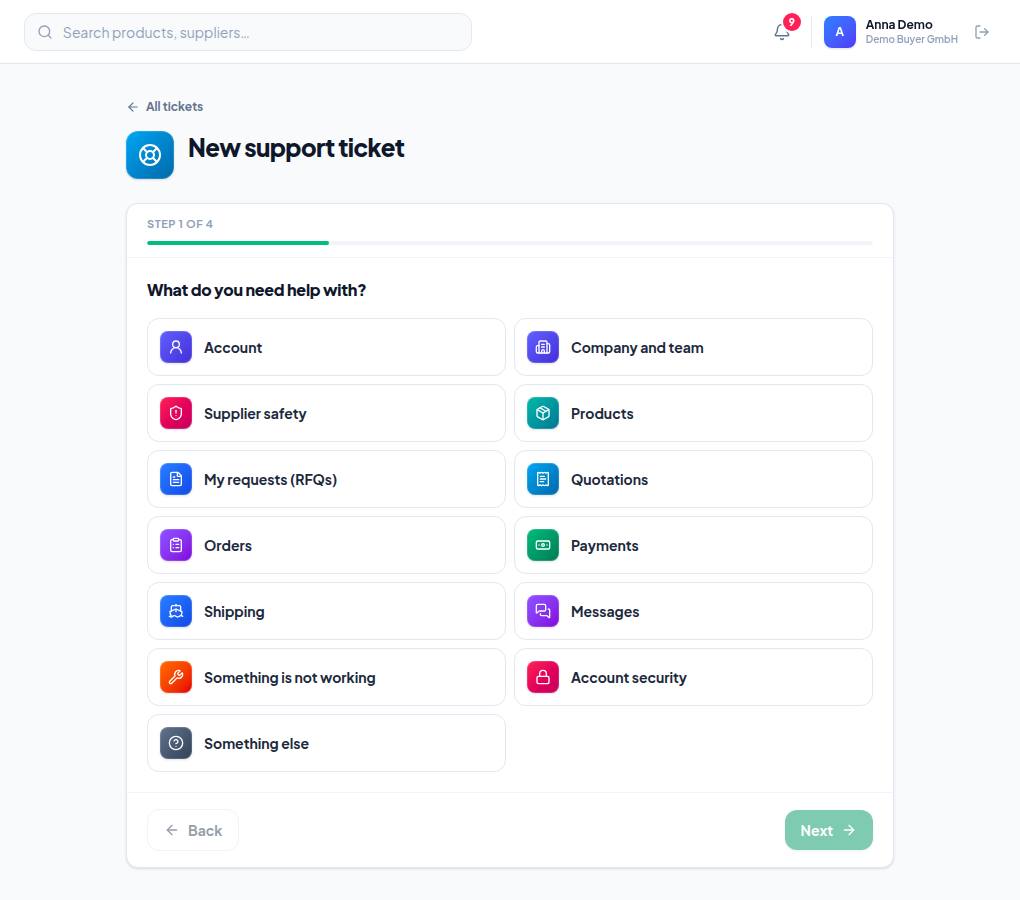
- 1. Where you are in the form (for example Step 1 of 4).
- 2. What do you need help with? — pick the closest subject, such as Payments, Quotations or Supplier safety. The right subject sends the ticket to the right team.
- 3. Next — go on to the next step.
- For some subjects you are asked which issue is closest and which record it is about (an RFQ, an order). Not sure? Press Skip.
- Describe the problem — a one-line Subject, then what you were trying to do, what you expected and what happened instead. Copy any error message exactly.
- Add screenshots or files — optional, but a screenshot usually gets a faster answer.
- Check and send — review it and press Send ticket. You get a ticket number.
Replies, solving and reopening
- When support replies you get a notification and an email. The email carries only the ticket number, subject and status — read the reply in the portal.
- Answer in Your reply on the ticket; Add files attaches images, PDF, Word, Excel or text files (up to 10 MB each, 5 per message).
- When your problem is fixed, press My problem is solved.
- For 7 days after a ticket is resolved you can reply or press Reopen; after that it closes. From a closed ticket you can start a follow-up.
Frequently asked questions (FAQ)
How many tickets can I open?
Up to 5 new tickets an hour and 20 a day from one account, and up to 20 open at once for a company. Reply on an existing ticket rather than opening a new one for the same problem.